One journey, two points of view
Volunteers get a clear, self-service path from registration to their final shift. Leaders get the tools to set up, staff and run the event, and to see problems before they happen.
From sign-up to final shift
Everything a volunteer does fits on a phone and needs only an email address.
Register
Fill in the short public form with your name and email, then complete your details from the link you're sent. Availability comes first and saves as you tap.
Get approved
Your congregation's service committee confirms you online. You'll see your status on your Settings page.
Complete training
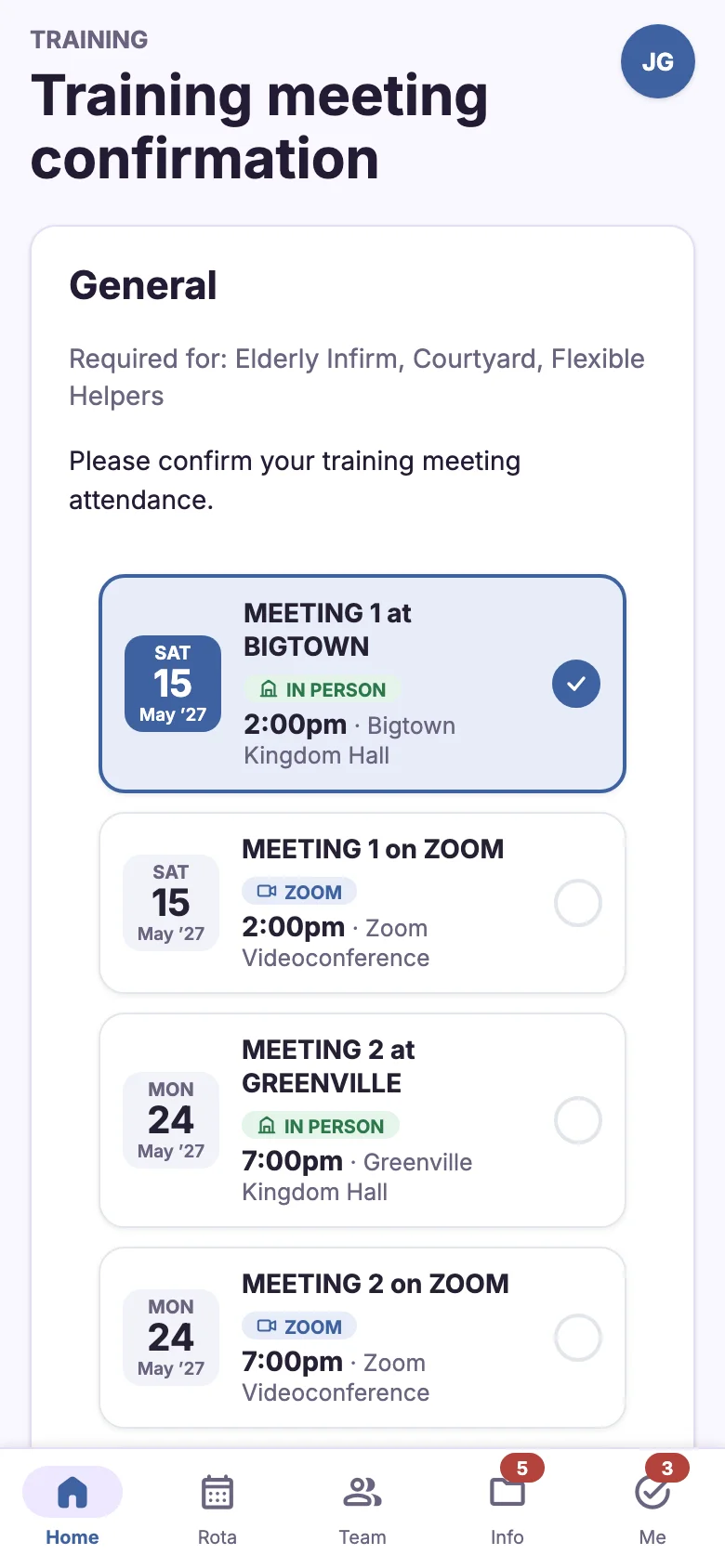
Pick an in-person or Zoom meeting from the date cards, or watch the training video if your assignment allows it. At an in-person meeting, show your QR training pass.
See your shifts
Home shows your next shift and captain, with "Add to calendar". The Rota tab shows your whole team in Grid, Time or Location view.
Arrive and check in
On event days, tap "I've arrived" (or "Not available today") so your captain knows straight away.
Stay informed
Shift reminders arrive before each shift. Event alerts appear at the top of Home, and your "For you" list keeps track of anything still to do.
Share feedback
Tell the event team what went well, or what could be better, from the Feedback page at any time.

From set-up to the last count
Most coordination happens in the weeks before the event. JW Volunteer turns that work into a series of dashboards with clear next steps.
Set up the event
Define assignments and sections, their captains and assistants, timeslot patterns, qualifications and training tracks. Then choose which features this event team uses.
Approve registrations
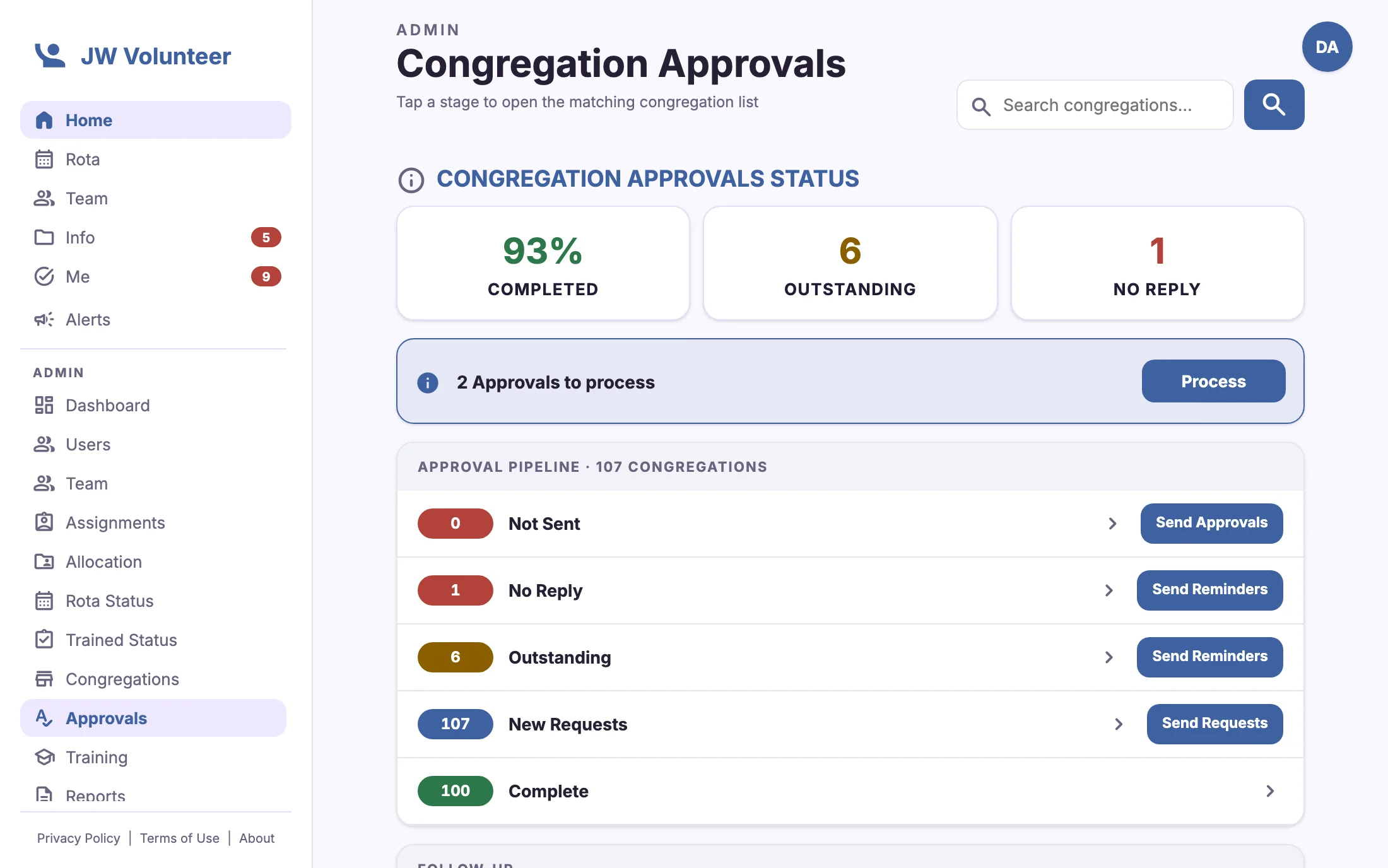
Send approval requests to congregations, chase replies and match received approvals to volunteers. Every decision is logged.
Train the team
Schedule meetings, run scanned registers and watch Trained Status climb section by section.
Allocate and build the rota
Balance hours per volunteer across sections. Then let captains fill their rotas while Rota Status tracks completion.
Run the event day
Follow check-ins live, send event alerts, issue todos and collect attendance counts. Shift reminders go out automatically.
Report and review
Export volunteers, rotas and section numbers, review feedback and keep training records for next season.

What each role can see and do
Roles are simple switches on each person's record, and they combine. A captain can also be an administrator, for example. Menus, dashboards and data follow automatically.
Volunteer
Their own shifts and team rota, check-in, training booking and QR pass, documents, alerts, todos, notification settings and feedback.
Captain
A team dashboard with rota status, the team list with contact buttons, the ability to issue todos, attendance counts and section numbers.
Level captain
Every captain in their area at a glance, allocation between teams, rota and availability gaps, and event alerts.
Overseer
Department-wide visibility of volunteers, rotas, training and approvals, plus event alerts, including emergency alerts.
Administrator
Everything above, plus users, assignments, timeslots, approvals, training set-up, documents, reports and instance settings.
Assignment and training admins
Focused roles for managing a single assignment's people and documents, or for running training registers.
How the system is used across the event cycle
Set-up and registration
Assignments, timeslots and training tracks are configured. Registration opens, and approval requests go out to congregations.
Training and allocation
Training meetings run with scanned registers. Volunteers are allocated to sections, and documents are published.
Rotas and readiness
Captains complete rotas. Volunteers see their shifts and add them to their calendars, and dashboards flag any remaining gaps.
Live coordination
Check-ins, reminders, alerts, todos and attendance counts. The app works in the background, even on busy venue Wi-Fi.
Ready to look closer?
The features page covers every capability, with screenshots from the demonstration instance.