Everything an attendant team needs, start to finish
A complete tour of JW Volunteer, from setting up an event to the last shift. All screenshots come from the live demonstration instance and use anonymised data.
Build the rota once, and everyone sees it straight away
Overseers define assignments, locations and timeslots. Captains and level captains fill the slots. Every change appears on volunteers' phones immediately, with no separate publish step.
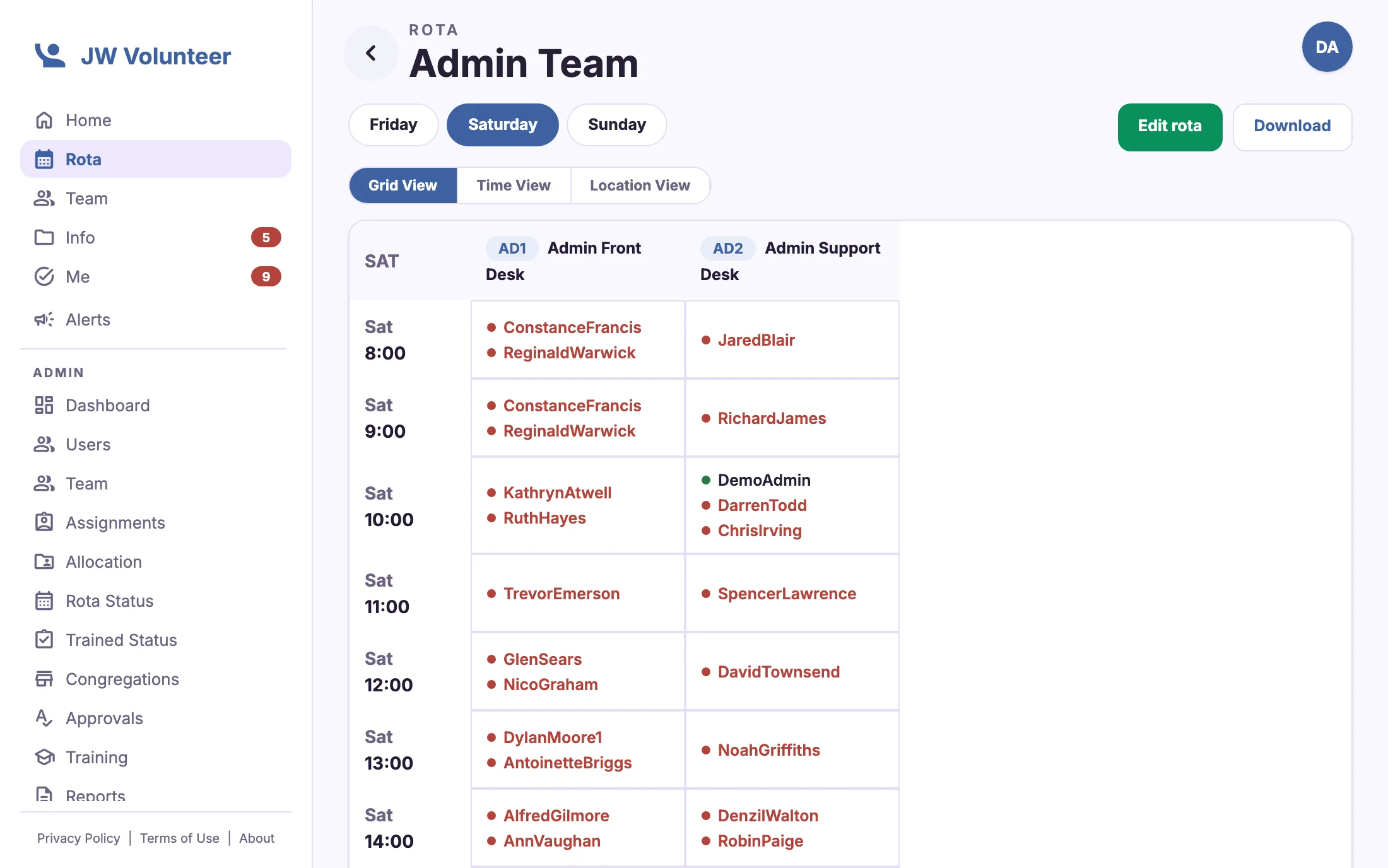
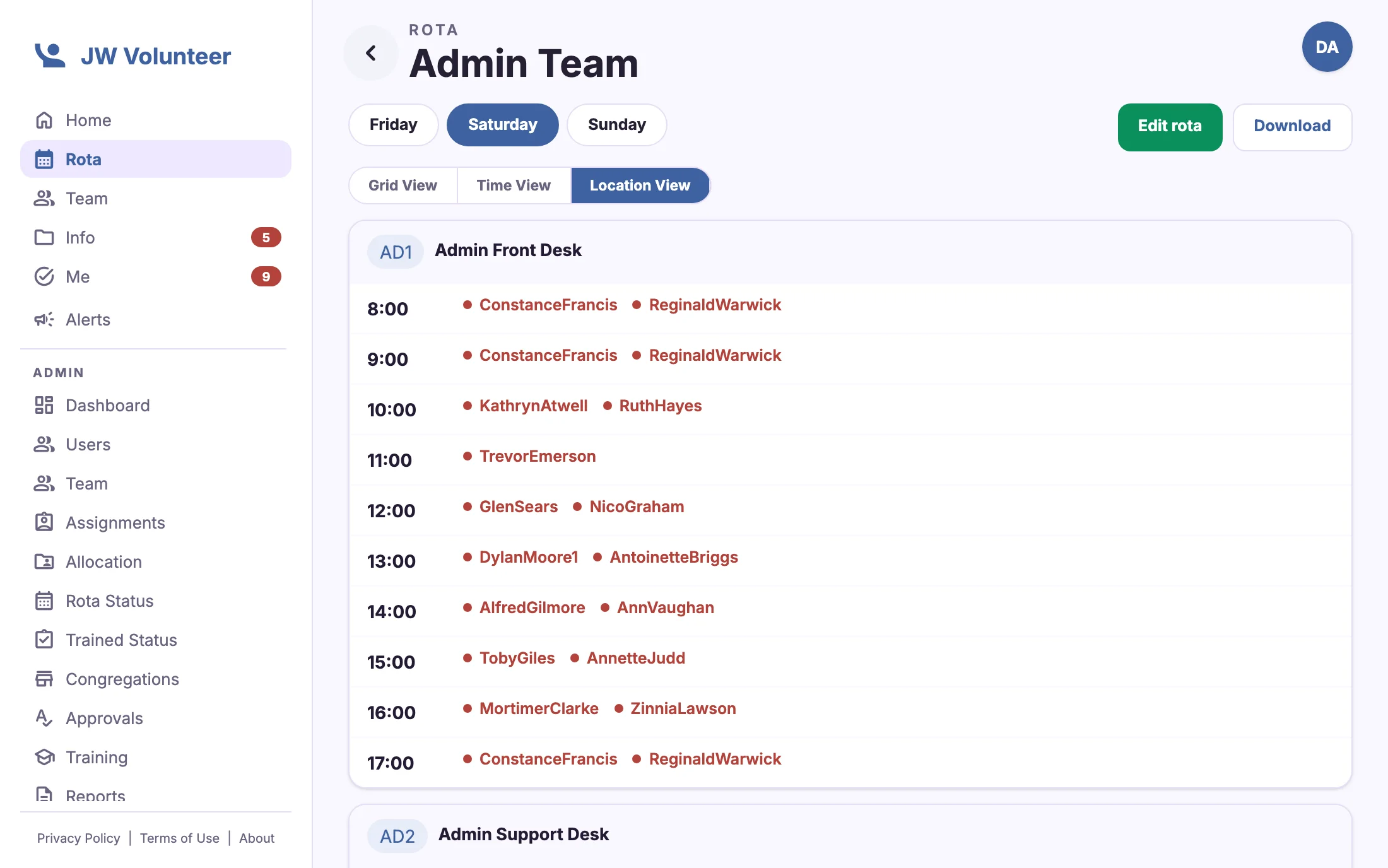
Three ways to read the rota
The Grid view lays every location side by side against time. The Time view lists who is on at each moment. The Location view groups the day by post. Day chips switch between event days, and the same views work for one team or the whole department.
- Grid, Time and Location views on desktop and phone
- The same views for one team or the whole department
- Optional self-booking: volunteers book or release shifts, even offline
- Download the rota as a spreadsheet

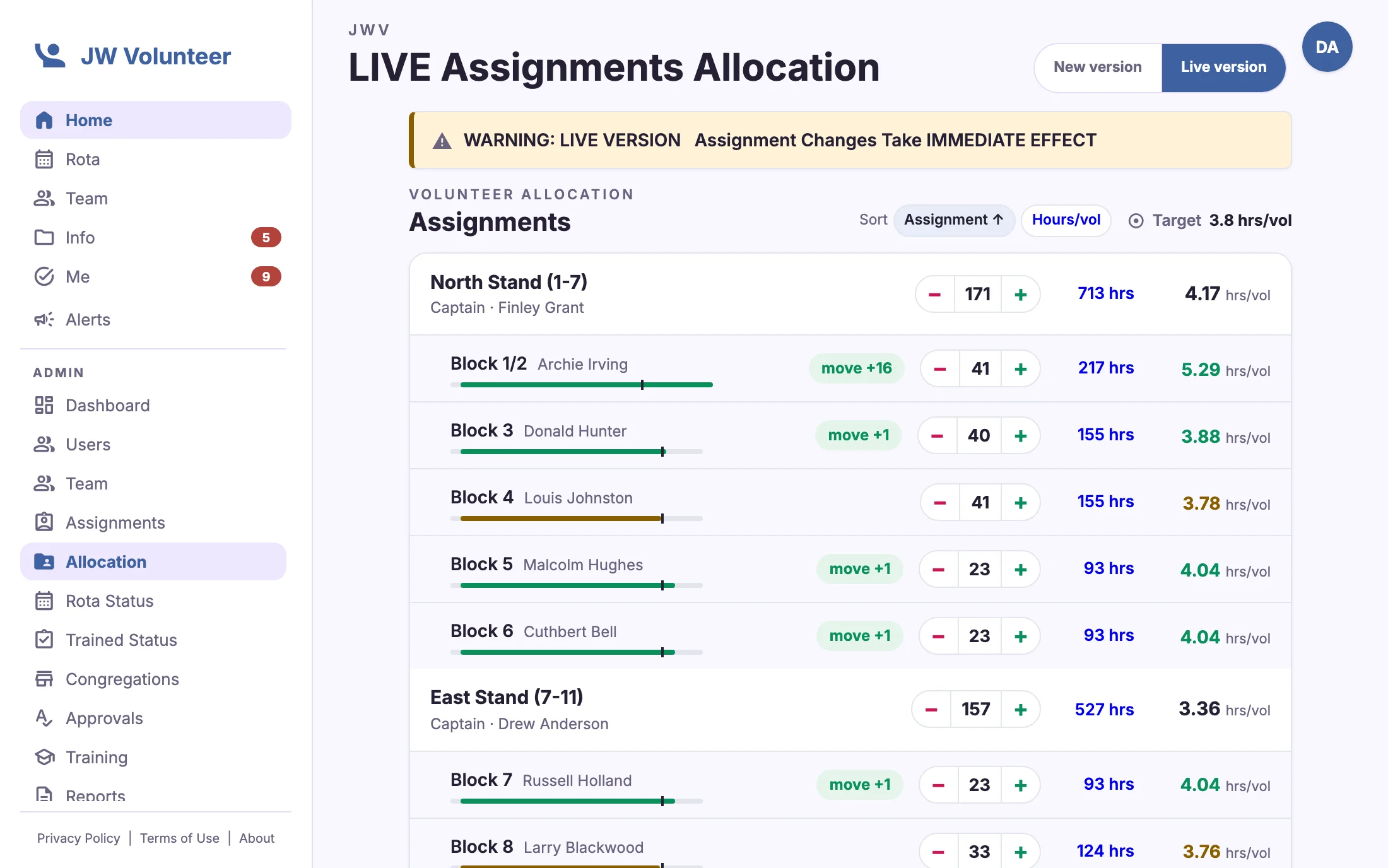
Allocation with the numbers in view
The allocation view shows each section's volunteers, total hours and hours per volunteer against a target. That makes it obvious where to move people before you start building the rota. Level captains get the same view for their area.
- Move volunteers between sections with one tap
- Hours-per-volunteer target shown for every section
- Changes go live straight away, with clear warnings
Rota status, section by section
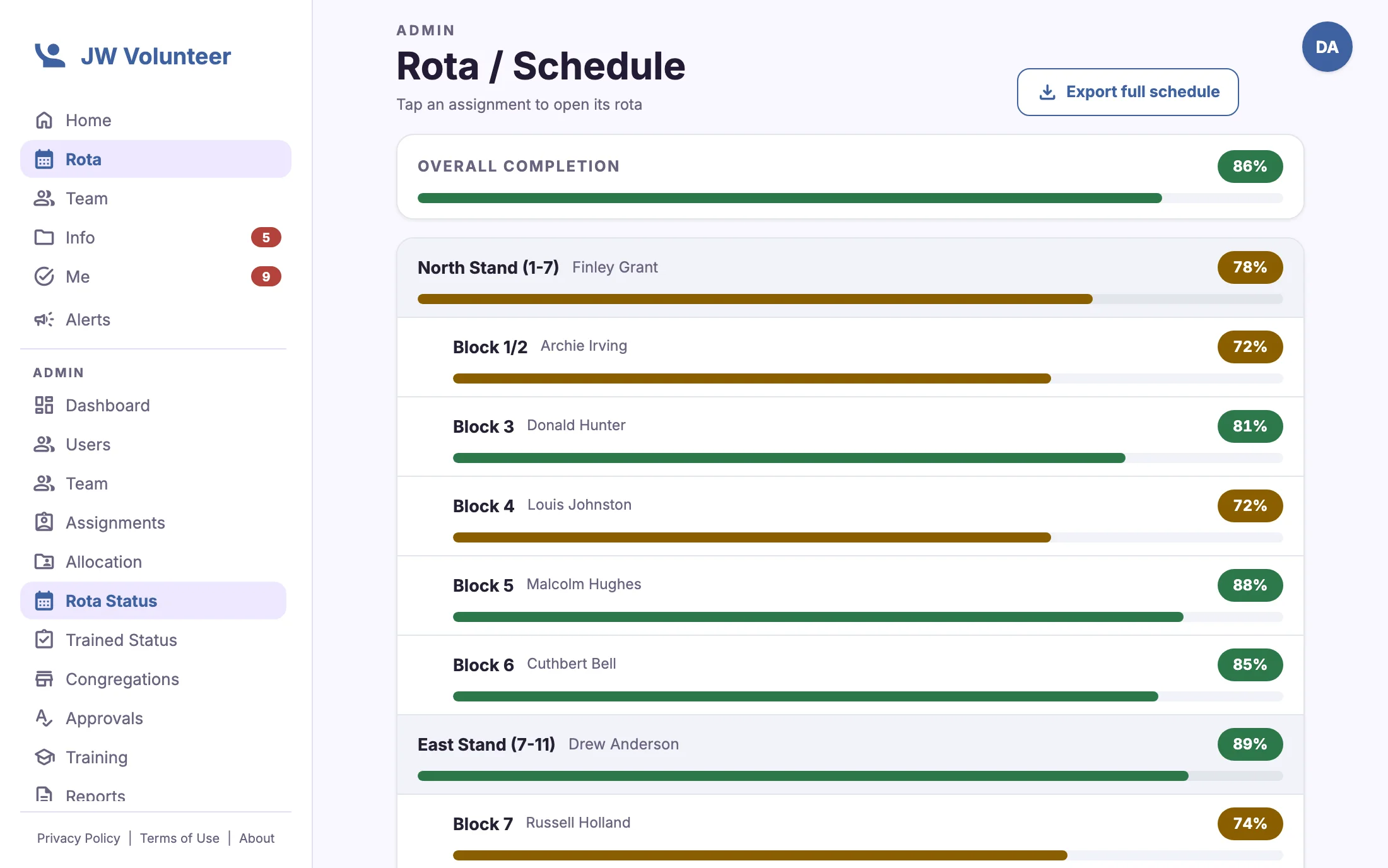
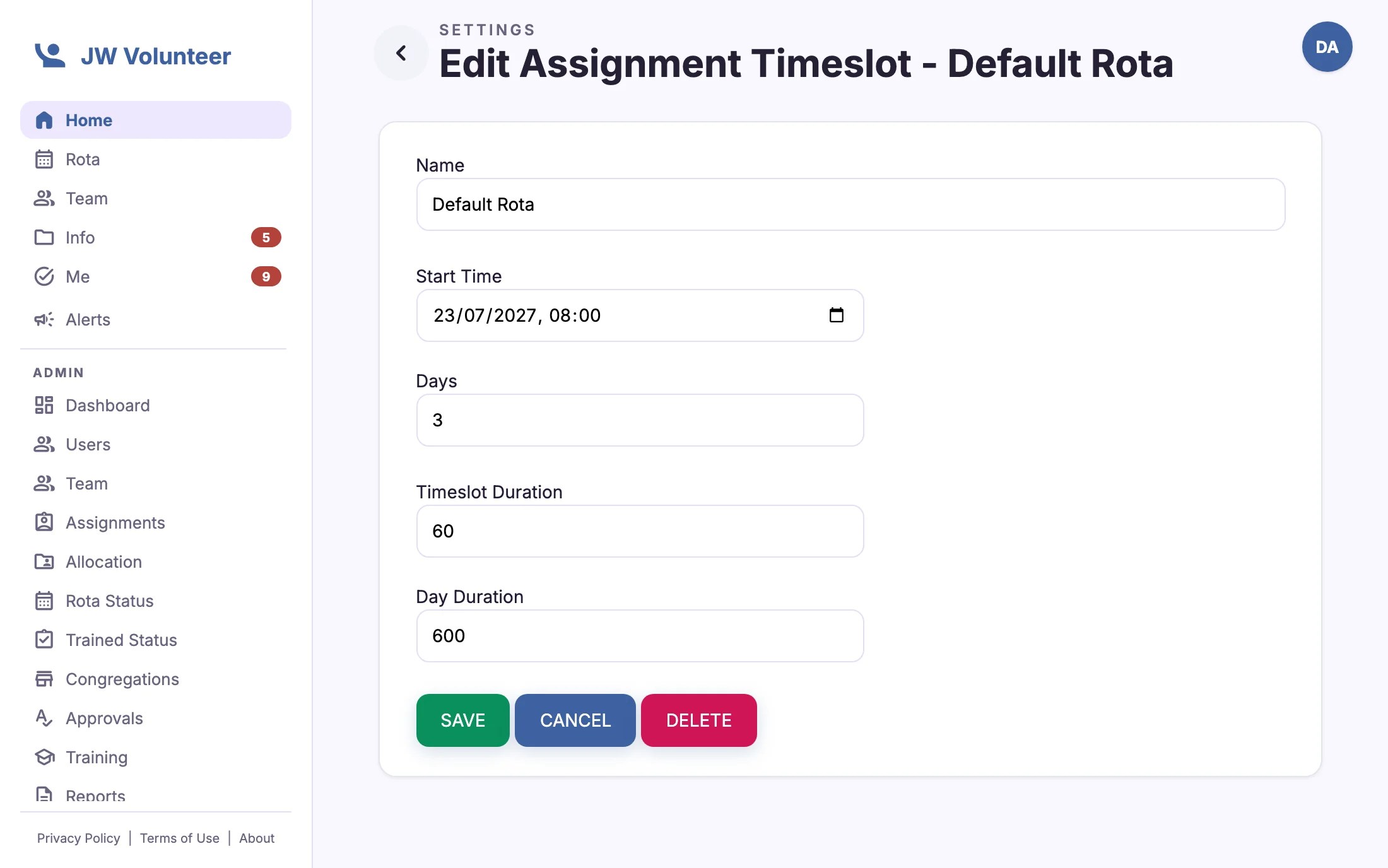
Rota status shows how complete each section's rota is. It flags untrained volunteers on the rota and unanswered availability, so gaps are found days before the event, not on the morning.
- Completion bars for every section and sub-section
- Untrained, unapproved and unavailable volunteers flagged
- Reusable timeslot patterns for each assignment
- Volunteers' early-start and late-finish availability on record
Built for the busiest hours of the event
When the venue is full, the app moves aside and puts the next action first: arrive, acknowledge, count, done.
Check-in in one tap
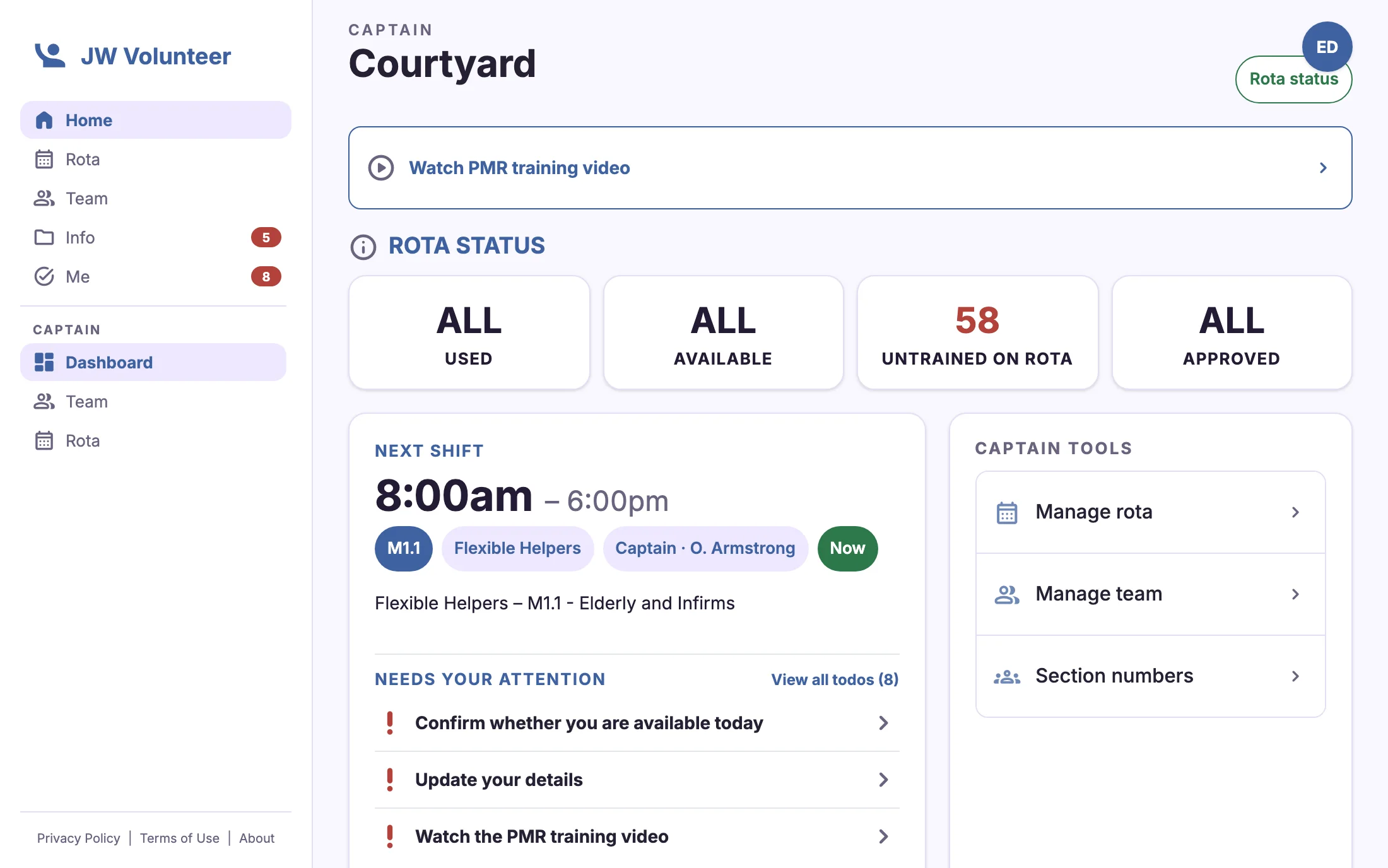
On each event day, volunteers on teams that use check-in see "Event day: are you on site?" on their Home screen. One tap records "I've arrived" or "Not available today". Captains and level captains see their team's availability straight away.
- Shown only to teams that need it, only on event days
- "Now" marker on the shift you're currently working
- Dashboards show who is available, unconfirmed or unavailable

Event alerts, with proof they were read
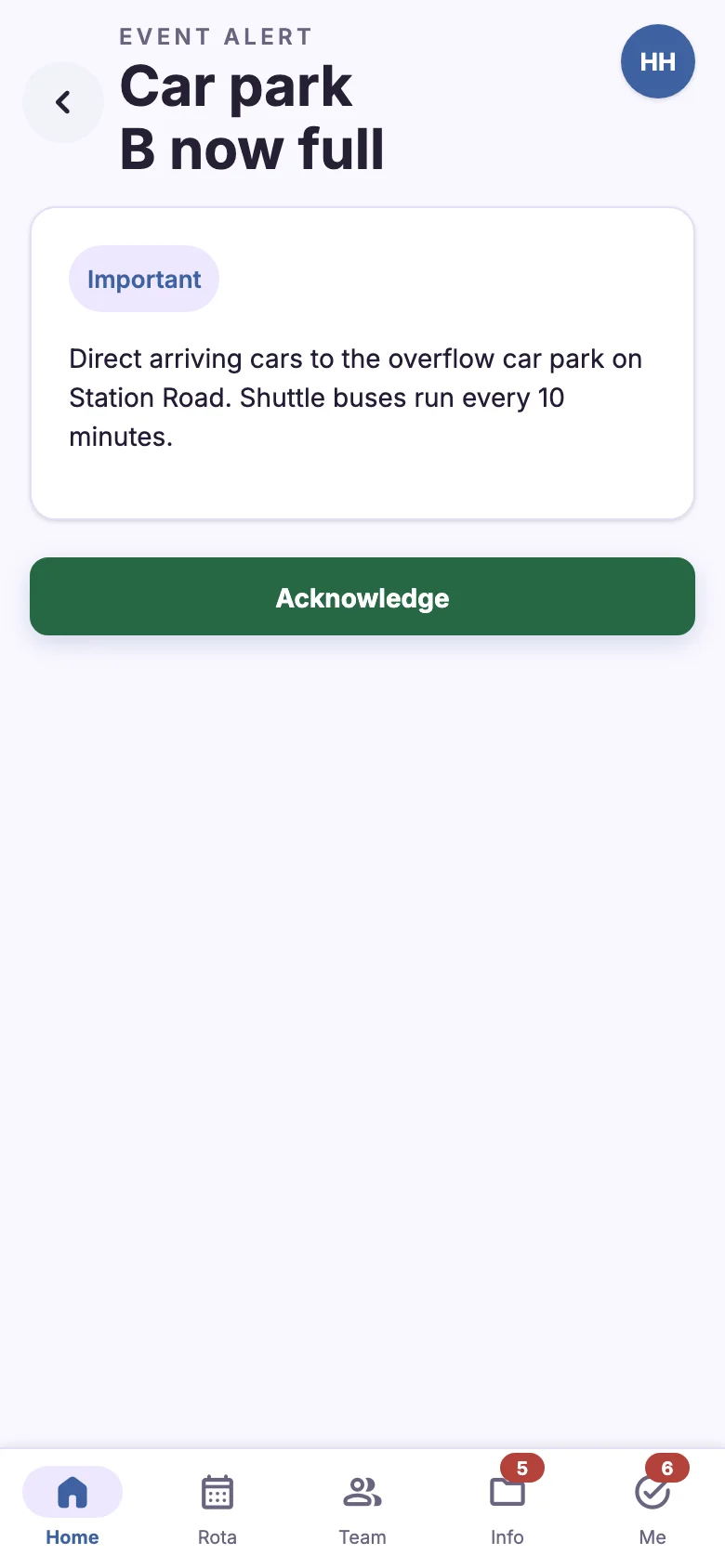
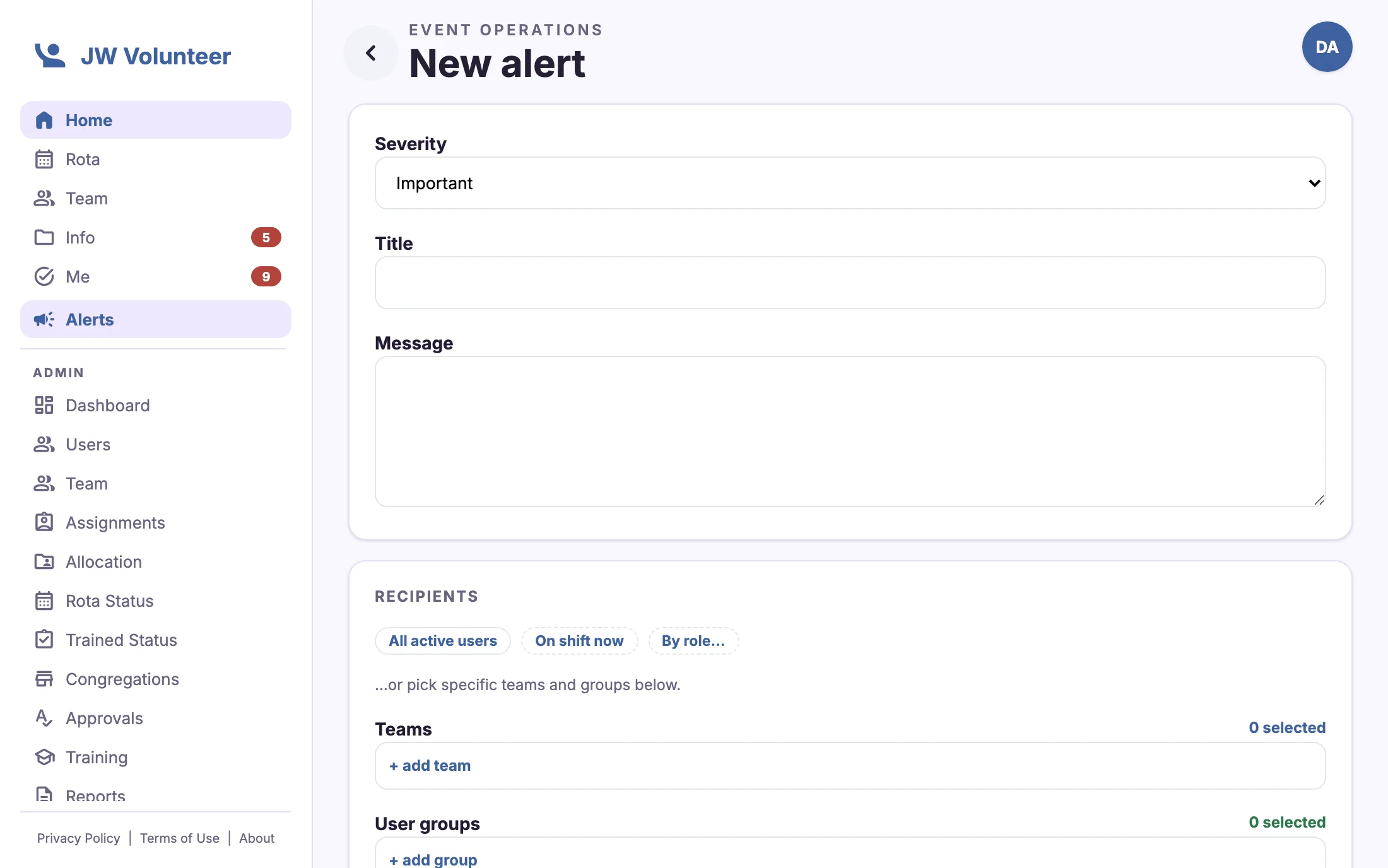
Administrators, overseers and level captains can send an alert to everyone, to whoever is on shift now, to a level, to a role, or to chosen teams and groups. Alerts are delivered as push notifications and pinned to Home. If you ask for acknowledgement, the live view shows exactly who hasn't seen it yet.
- Information, important and emergency severities
- Emergency alerts reach every active device, even in quiet hours
- Delivered, acknowledged and "not acknowledged" lists
- Stand down and send an all-clear, or cancel

"For you": every todo in one place
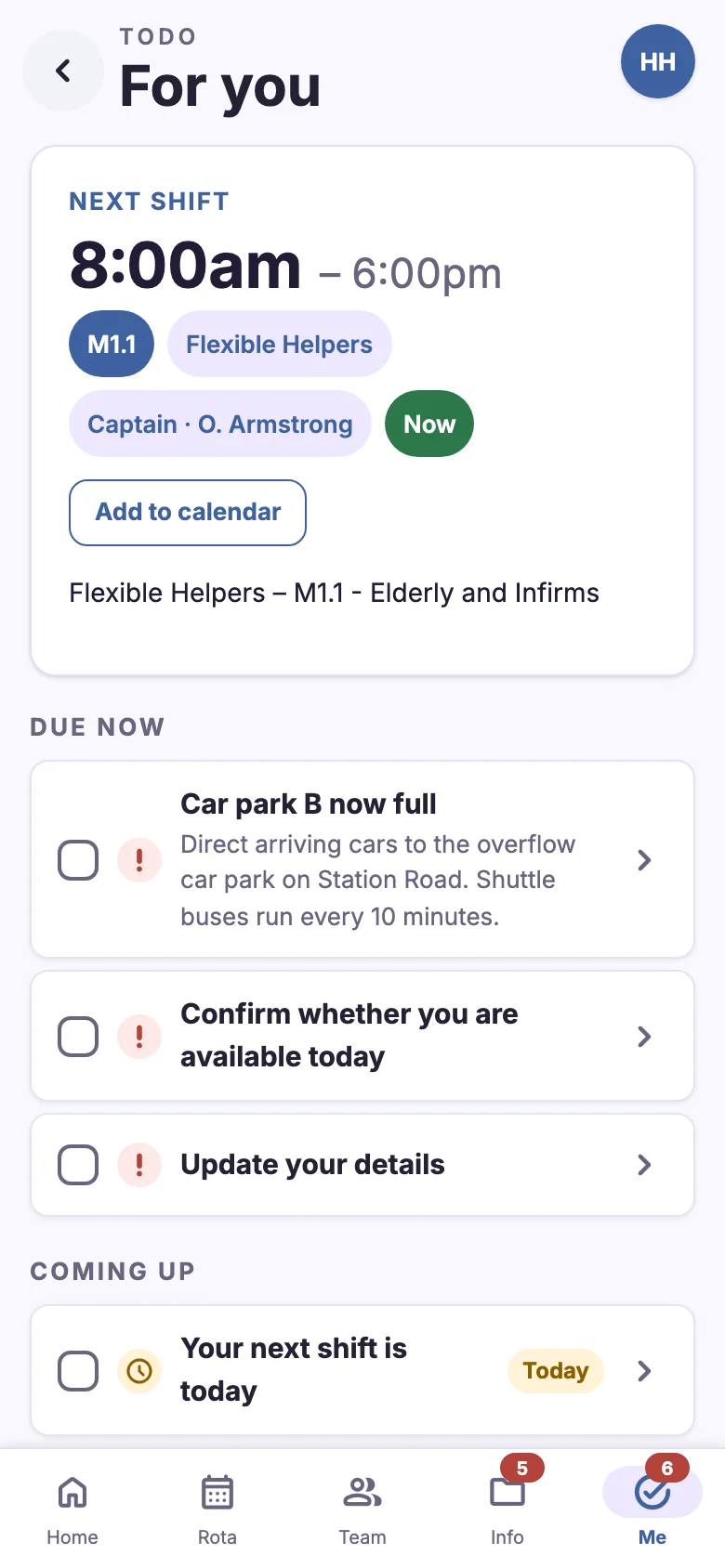
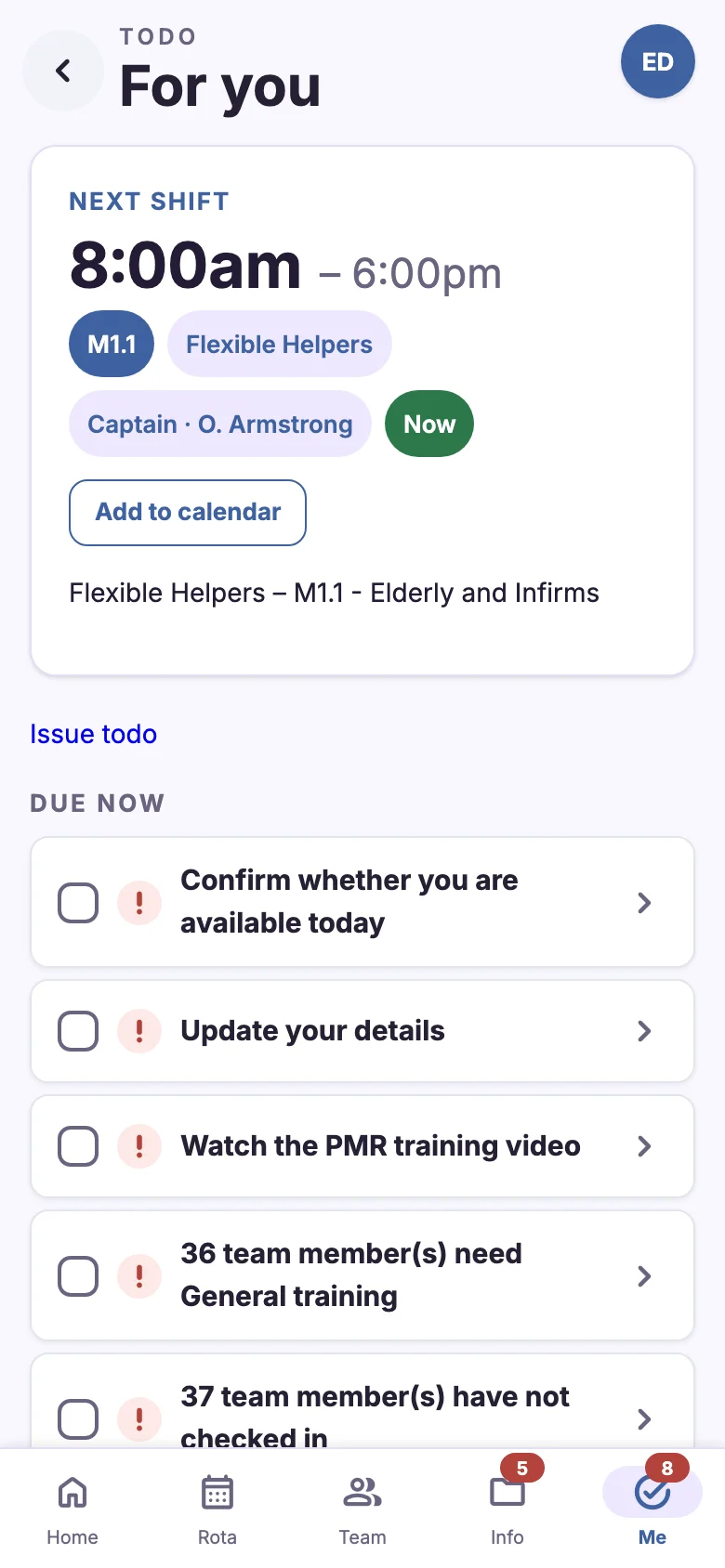
The Me tab collects everything that needs your attention, ordered by urgency: update your details, confirm availability, watch a training video, acknowledge an alert. Supervisors also see team-level items, such as members who haven't answered availability.
- Due now, coming up and FYI groups
- Captains and above can issue todos to their team
- See at a glance who has finished an issued todo
Attendance counts that add themselves up
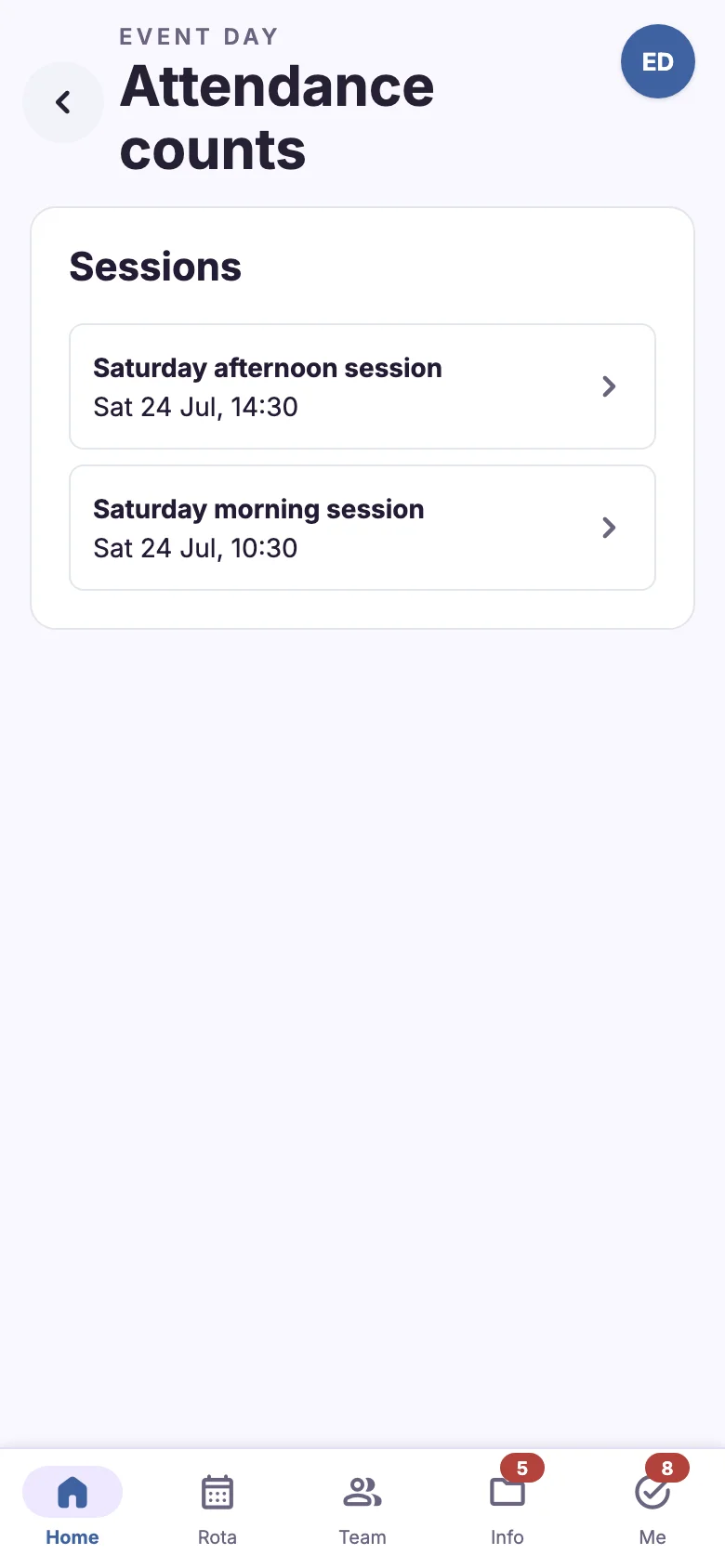
Set up count sessions for each programme part. Captains enter their section's audience count from their phone, and the figures roll up through levels into an overall total. Sessions lock automatically after their window, and corrections are recorded.
- Count sessions with due times and automatic locking
- Captains are prompted when a count is due
- Overrides and voided entries keep an audit trail


From sign-up to approved, with the congregation in the loop
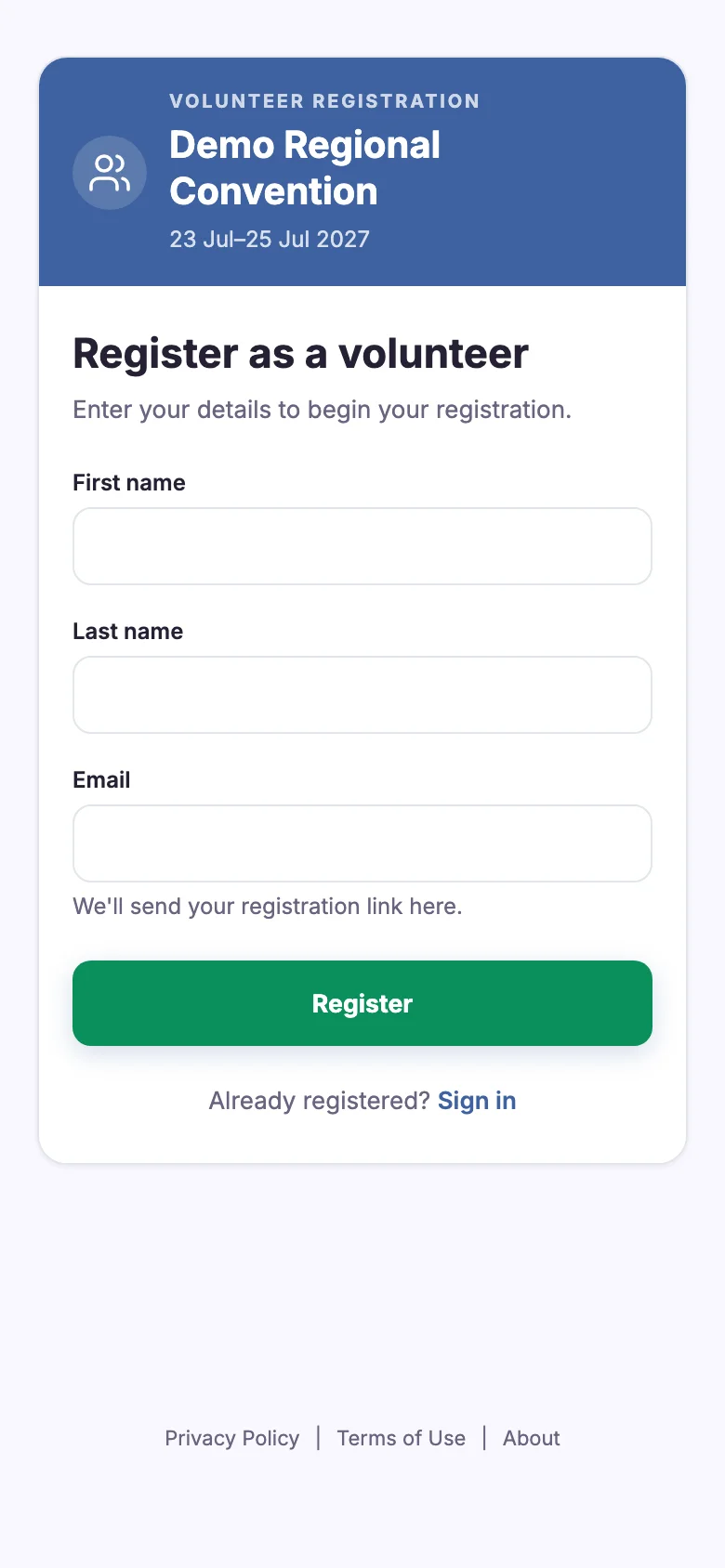
Volunteers register on a public form. Each congregation's service committee confirms them, and every decision is recorded.
A short, friendly registration
Volunteers enter their name and email to begin, then finish their details from the link they receive. Availability comes first. Answers to "Are you available?", early start and late finish save as you tap.
- Public registration, no account needed to apply
- Availability, early and late flags saved instantly
- Training meeting choice in the same flow

Congregation approvals that chase themselves
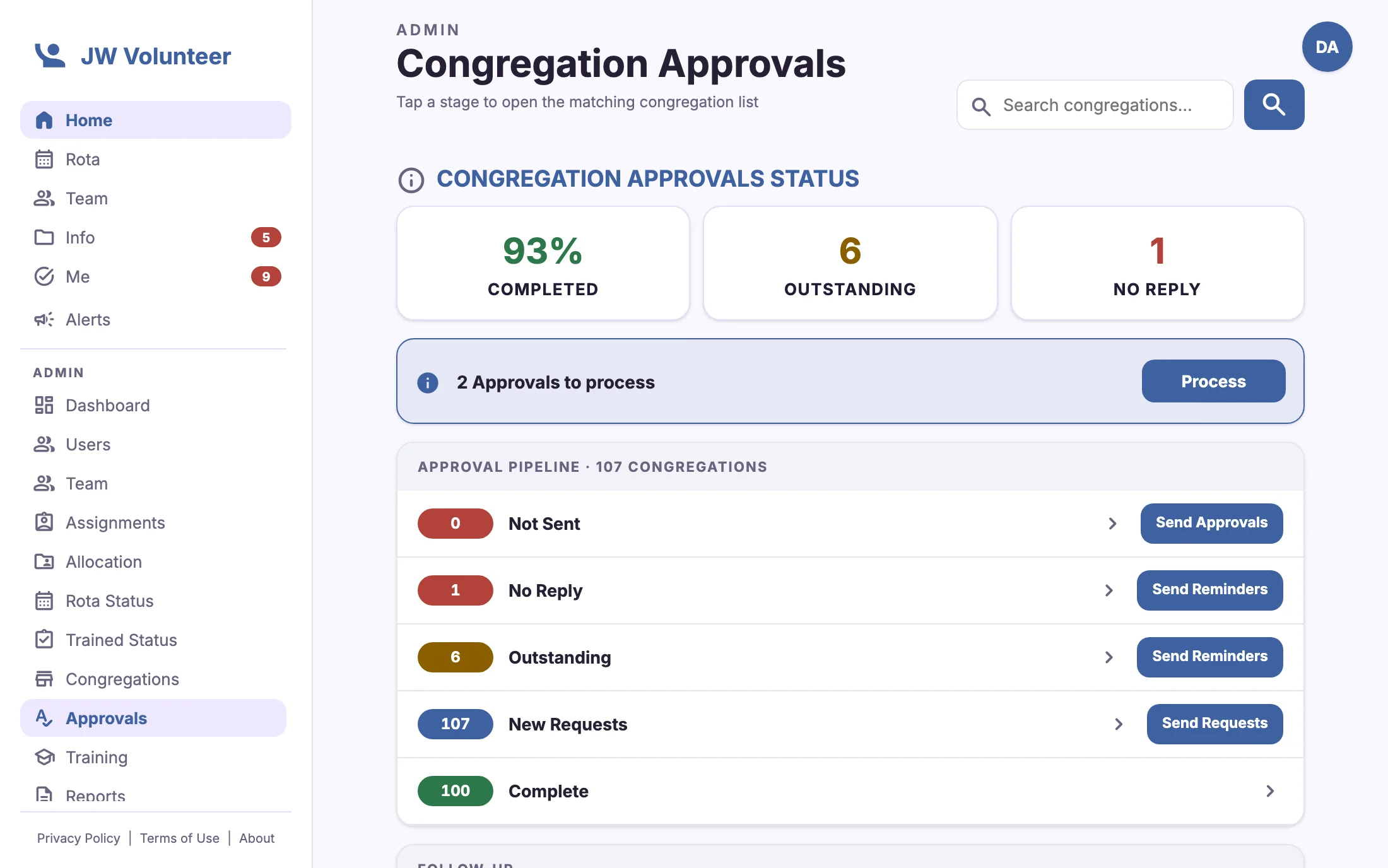
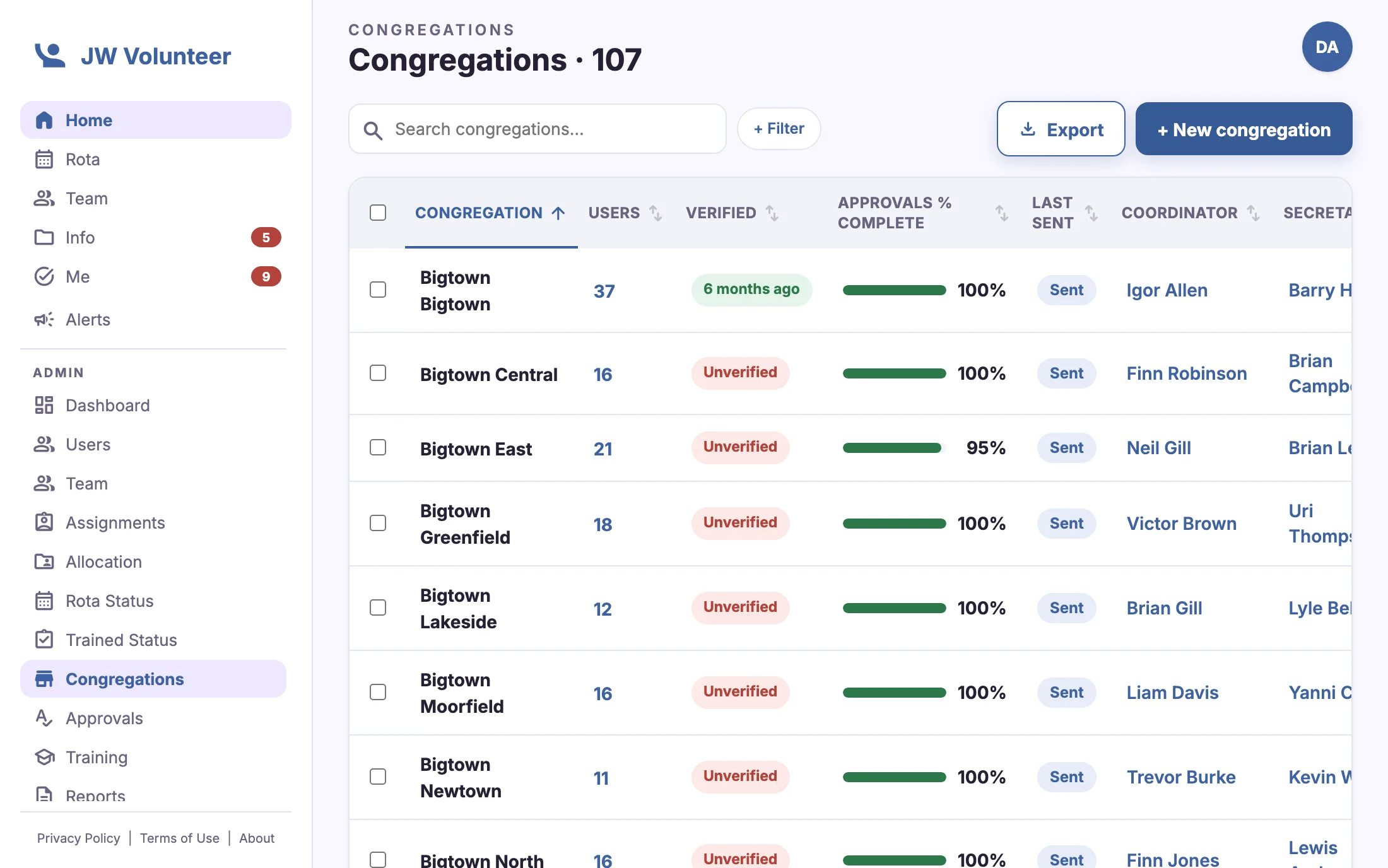
Approval requests go to each congregation's service committee. The approvals dashboard tracks the pipeline from "not sent" to "complete", and sends reminders to congregations that haven't replied. It also lets you match received approvals to registered volunteers.
- Completed, outstanding and no-reply figures at a glance
- Send approvals and reminders by pipeline stage
- Signed approval forms with who signed and when
- Mismatched and unlinked users surfaced for follow-up

Know who is trained for what, before the event
Training tracks connect each assignment to the training it requires. Volunteers book meetings or complete online training, and coverage is visible to every leader.
Training tracks and seasons
Define a track for each kind of training, such as general attendant training or creche training, and link it to the assignments that need it. Completion stays valid for the season. The Trained Status page shows coverage for every section, filtered by track and season.
- Per-assignment training requirements
- Online completion allowed only where it fits
- Qualification rules by assignment, including by gender
- Coverage percentage for every section
Booking a meeting takes seconds
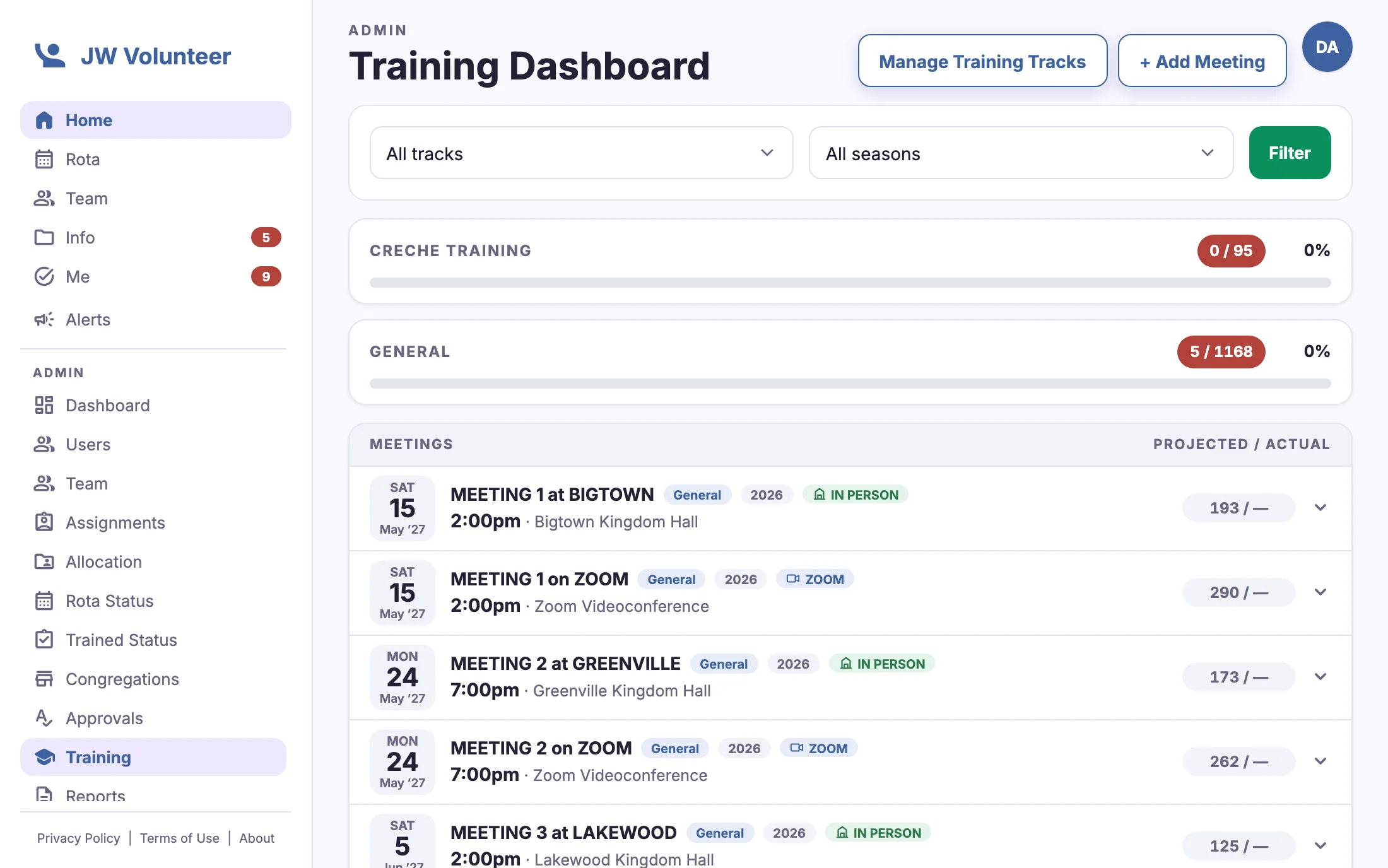
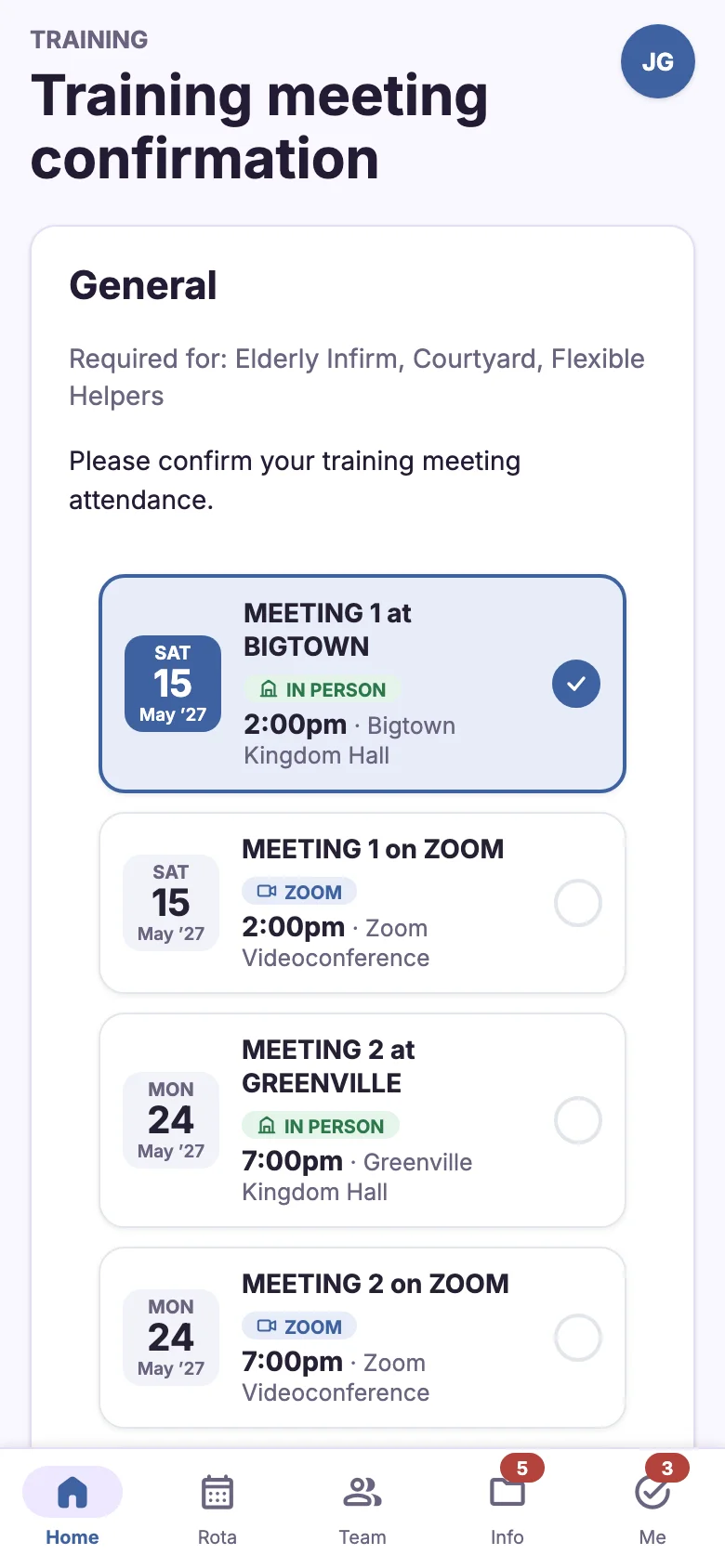
Volunteers who still need training see clear date cards for each in-person or Zoom meeting, including full sessions. They pick one, and the choice is recorded. At an in-person meeting, each volunteer shows their personal QR training pass. The register is scanned at the door, and Zoom meetings use attendance codes.
- In-person and video-conference meetings side by side
- Personal QR pass that can be rotated if shared
- Scanned registers with review before completion is confirmed
- Training videos counted towards qualifications


Find anyone and reach them fast
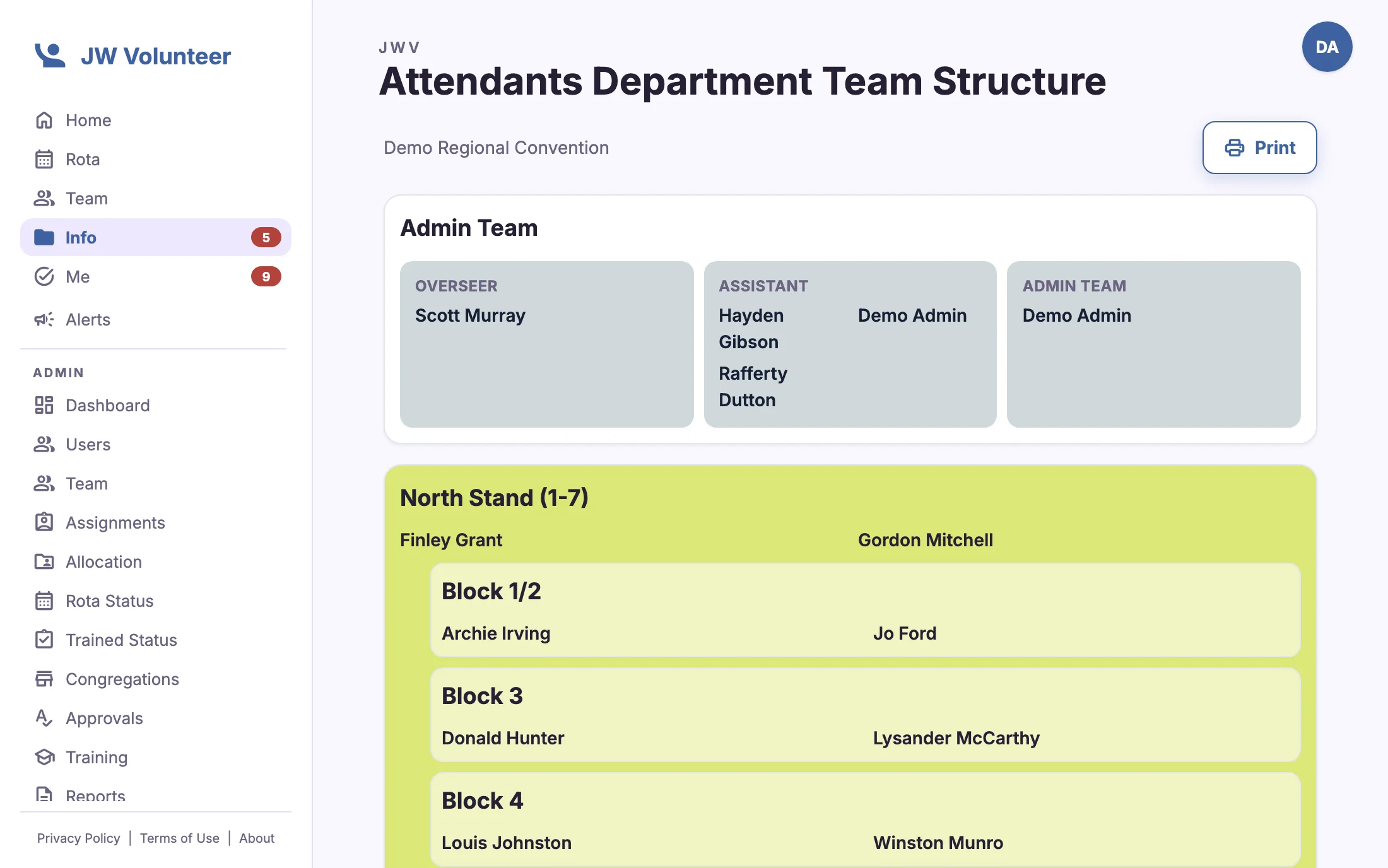
Team lists that search as you type, filters that remember your choices, and contact buttons on every row.
Team lists with one-tap contact
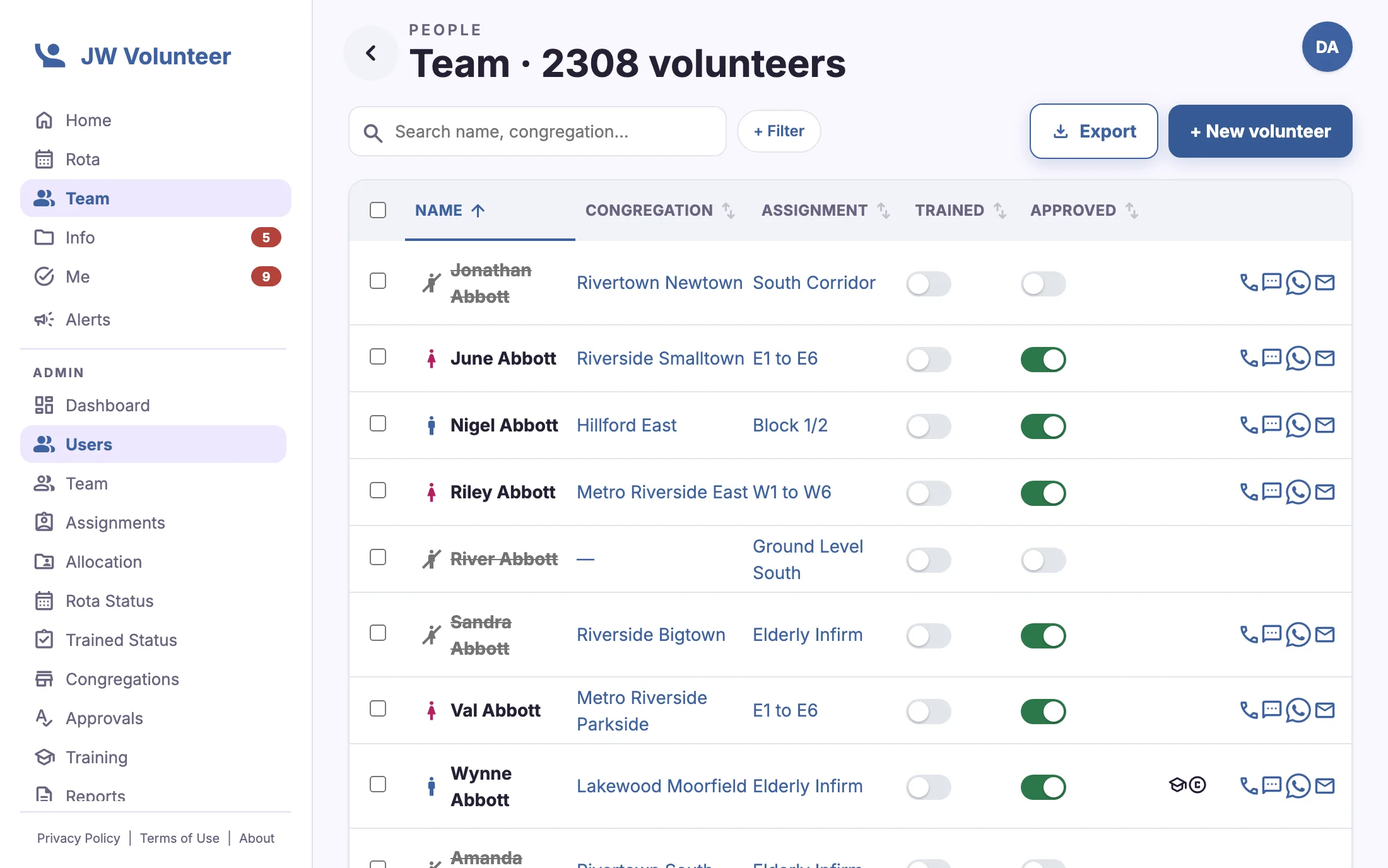
Search by name or congregation, add filters such as team, trained, approved, or brothers and sisters, and sort by any column. Every volunteer has call, text, WhatsApp and email buttons. Supervisors can export the filtered list.
- Instant search and stacked filters
- Sorting remembered on each device
- Trained and approved status on every card
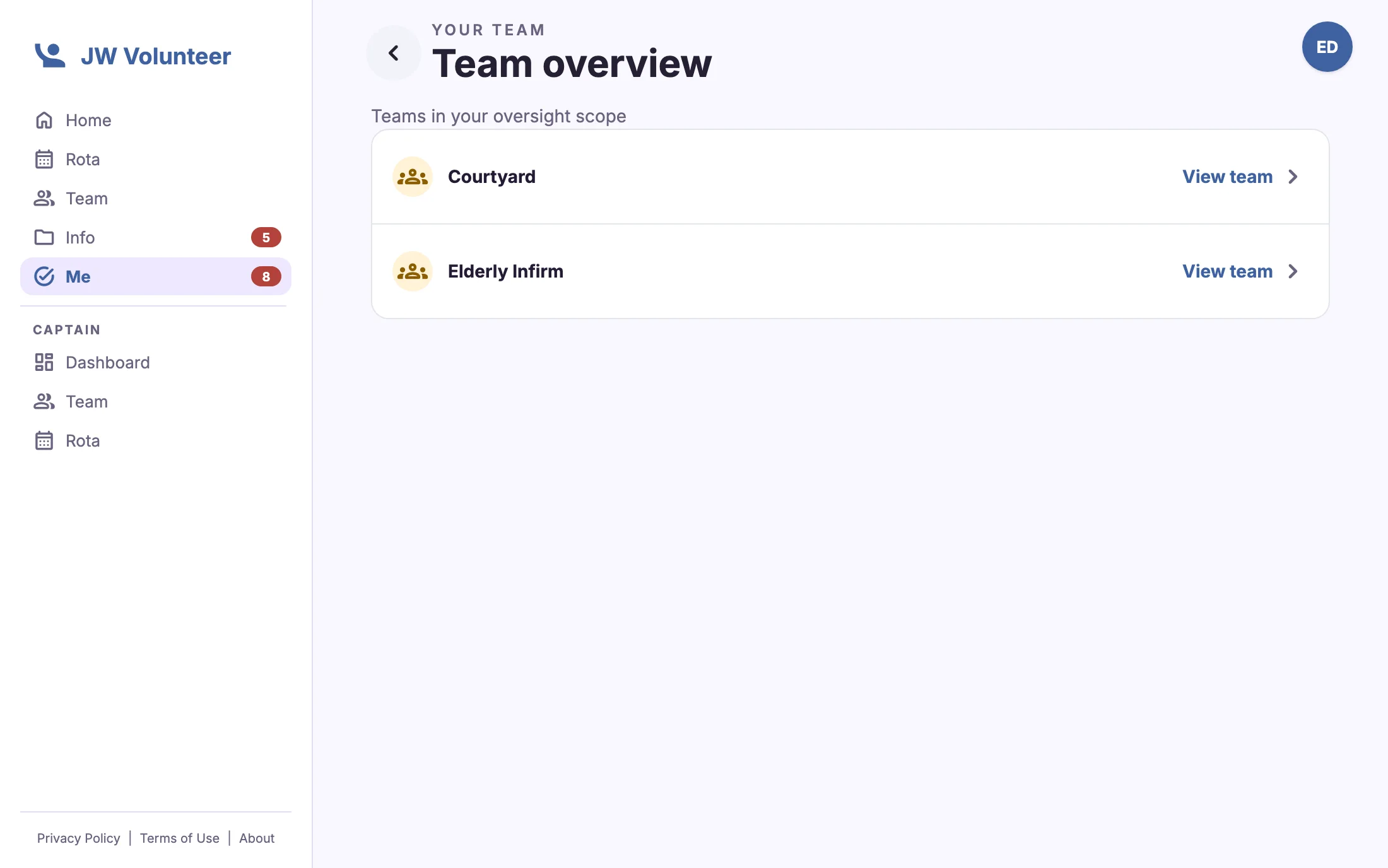
- Team structure page laid out over three levels


Dashboards for every level of leadership
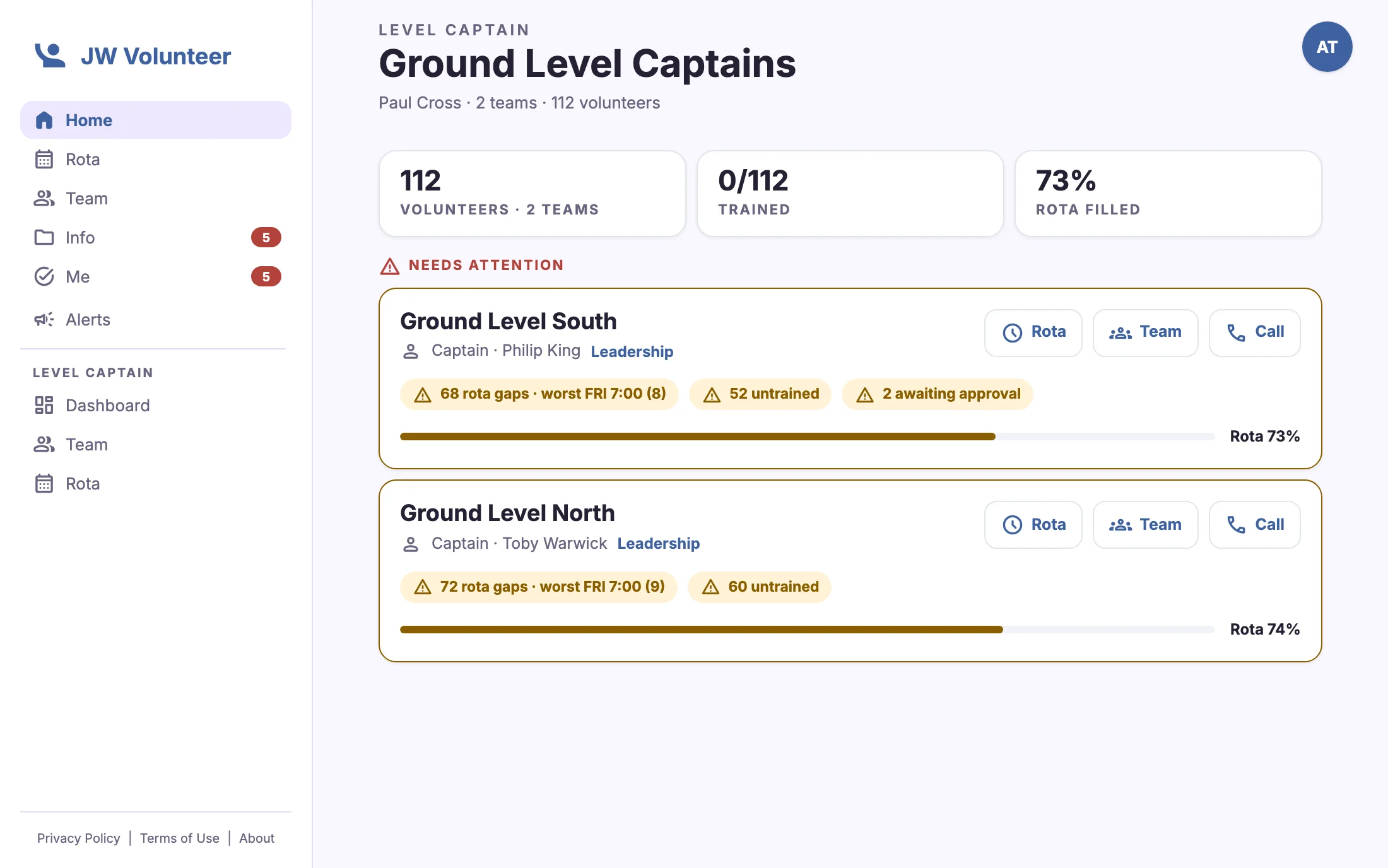
Captains see their team's rota status, untrained volunteers on the rota and their own todos. Level captains see every captain in their area, with rota gaps, unanswered availability and pending approvals flagged on each card.
- Captain, level captain and admin dashboards
- "Needs attention" items link straight to the fix
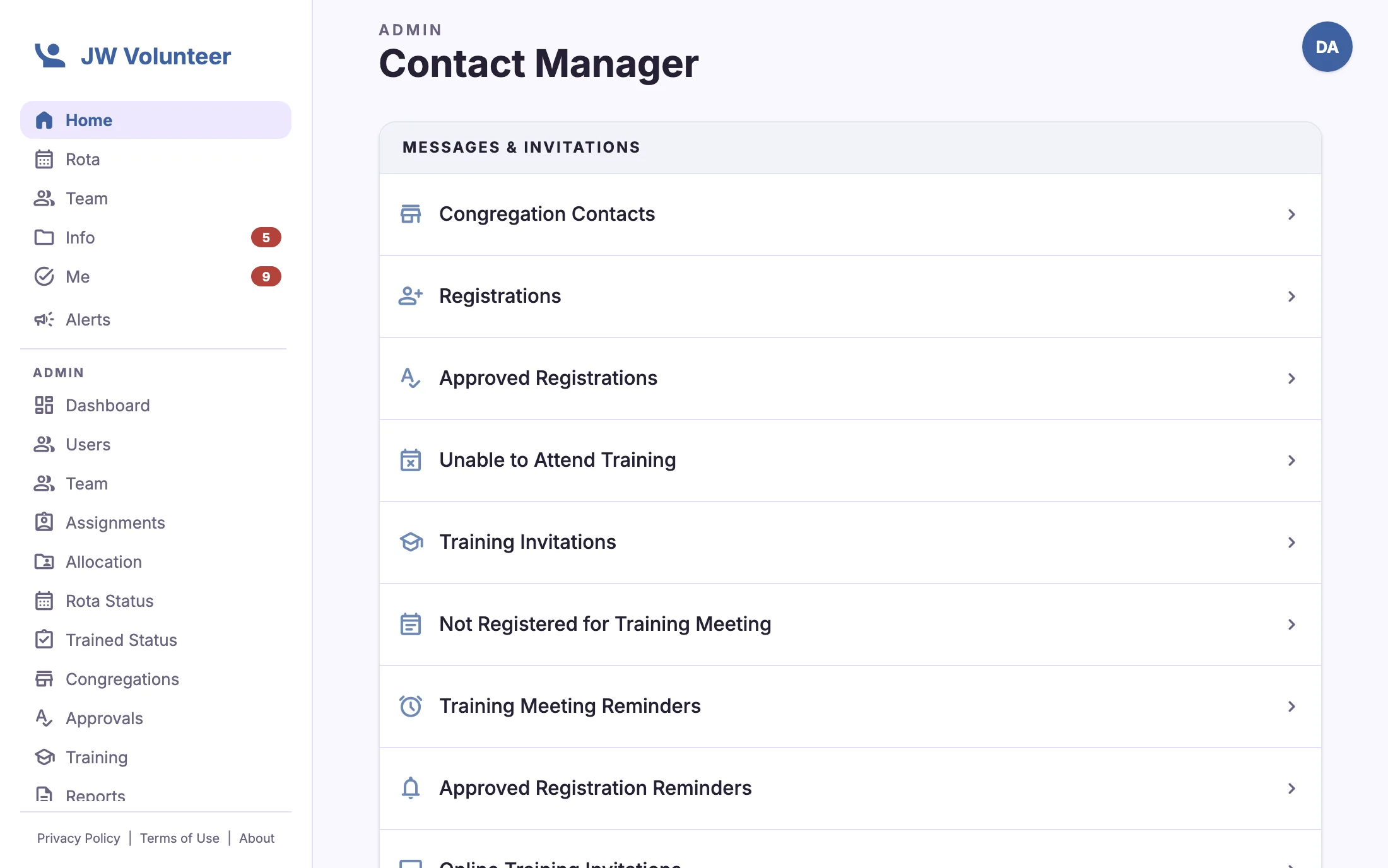
- Contact manager for invitations, reminders and custom emails
The right documents for the right people, even offline
Upload guidelines, site maps and briefings into folders, and set who can see each folder or document. Volunteers see "new" badges on anything they haven't opened. The library is cached, so it still works when the venue Wi-Fi doesn't.
- Folder and document permissions by role and team
- Unread counts on the Info tab and Home
- Select-and-act editing with drag-and-drop upload
- Training videos that count towards qualifications
- In-app PDF viewing and offline caching

Reminders that arrive on time, and only once
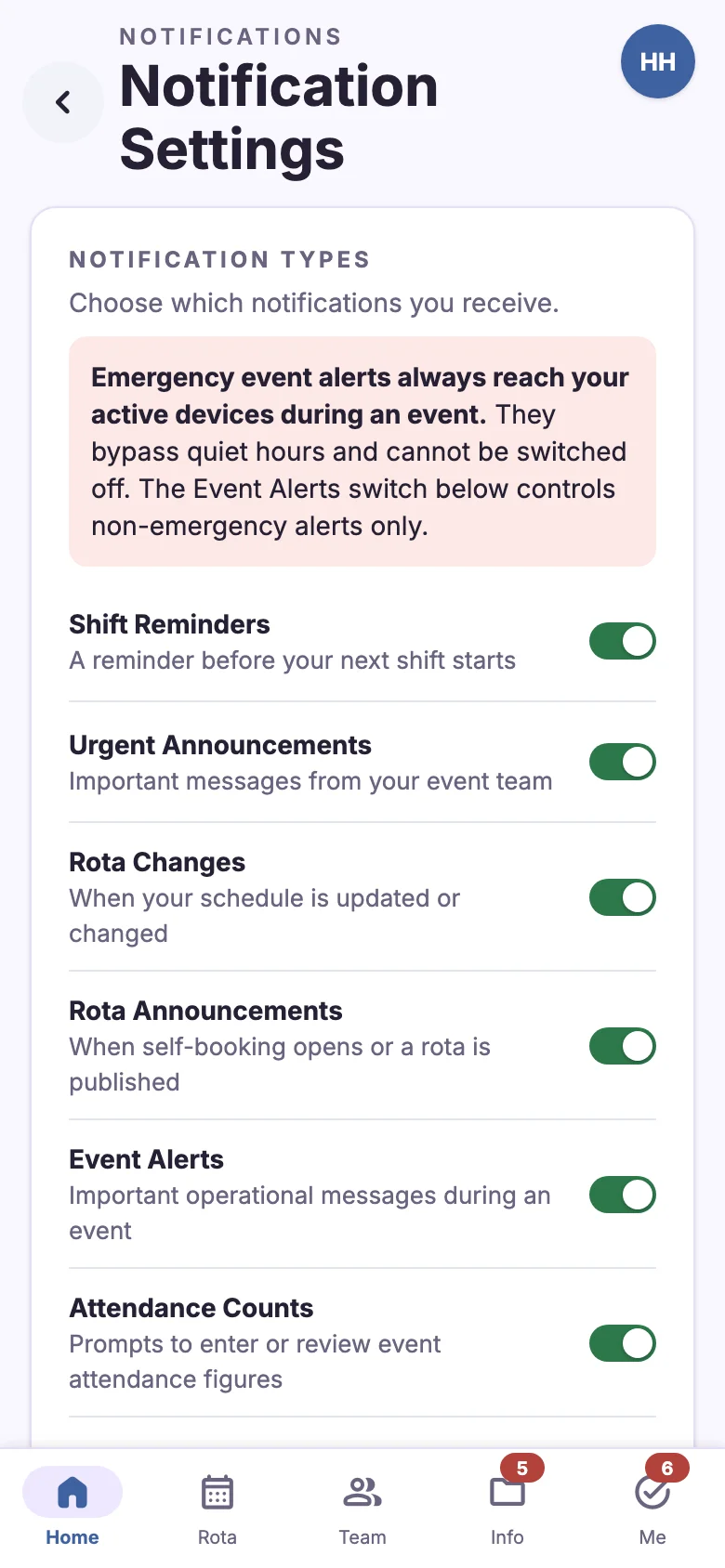
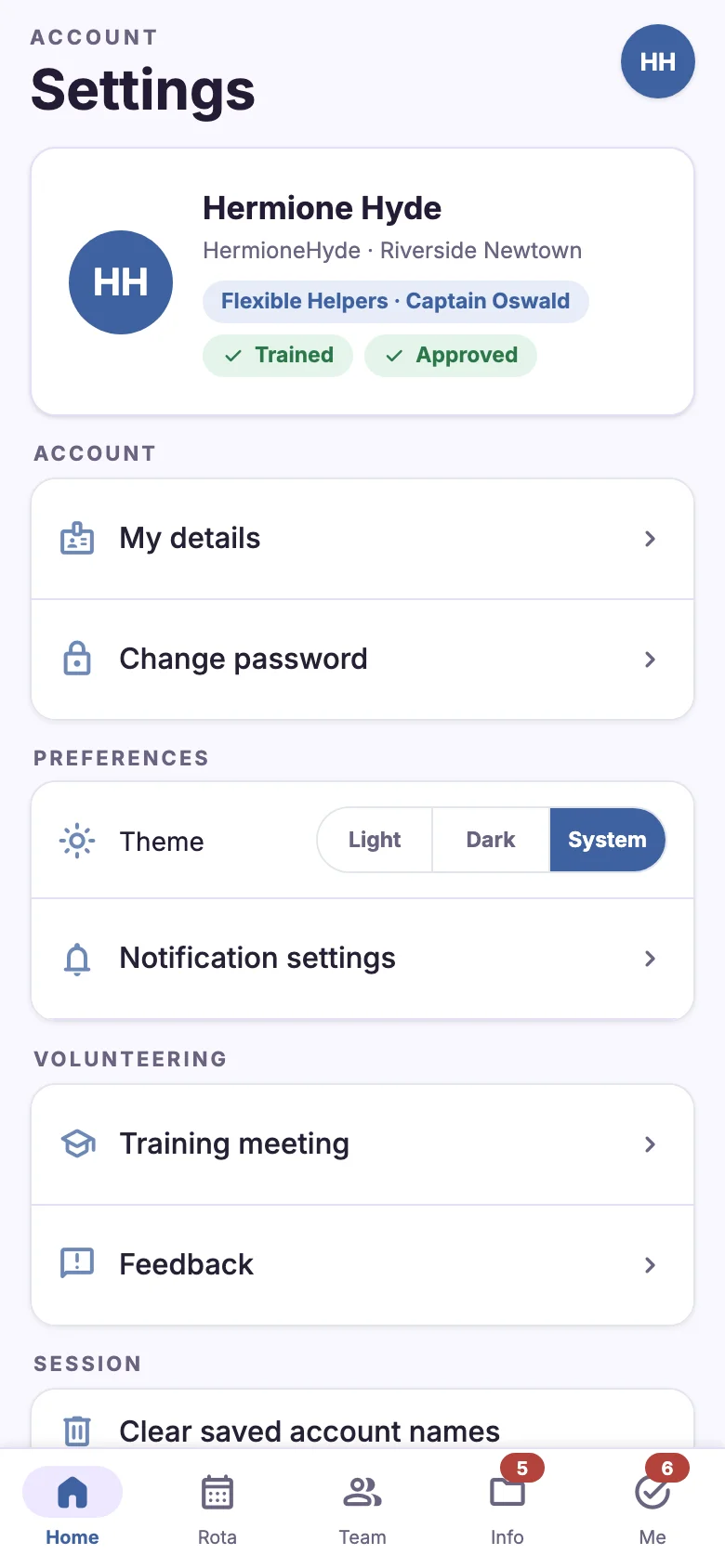
Before every shift, volunteers get a push notification. It says where to be, when, and who they're relieving. The event sets a default lead time, and each volunteer can choose their own. Every notification type can be switched on or off, and quiet hours hold non-urgent messages overnight.
- Shift reminders, rota changes and announcements
- Emergency event alerts always reach active devices
- Quiet hours that follow your own time zone
- Per-device on/off for web, iPhone, iPad and Android
- Each reminder sent exactly once
Answers for the questions overseers ask
Ready-made reports, live numbers on every dashboard, and settings that let each event team run its own way.
An admin dashboard that starts with today
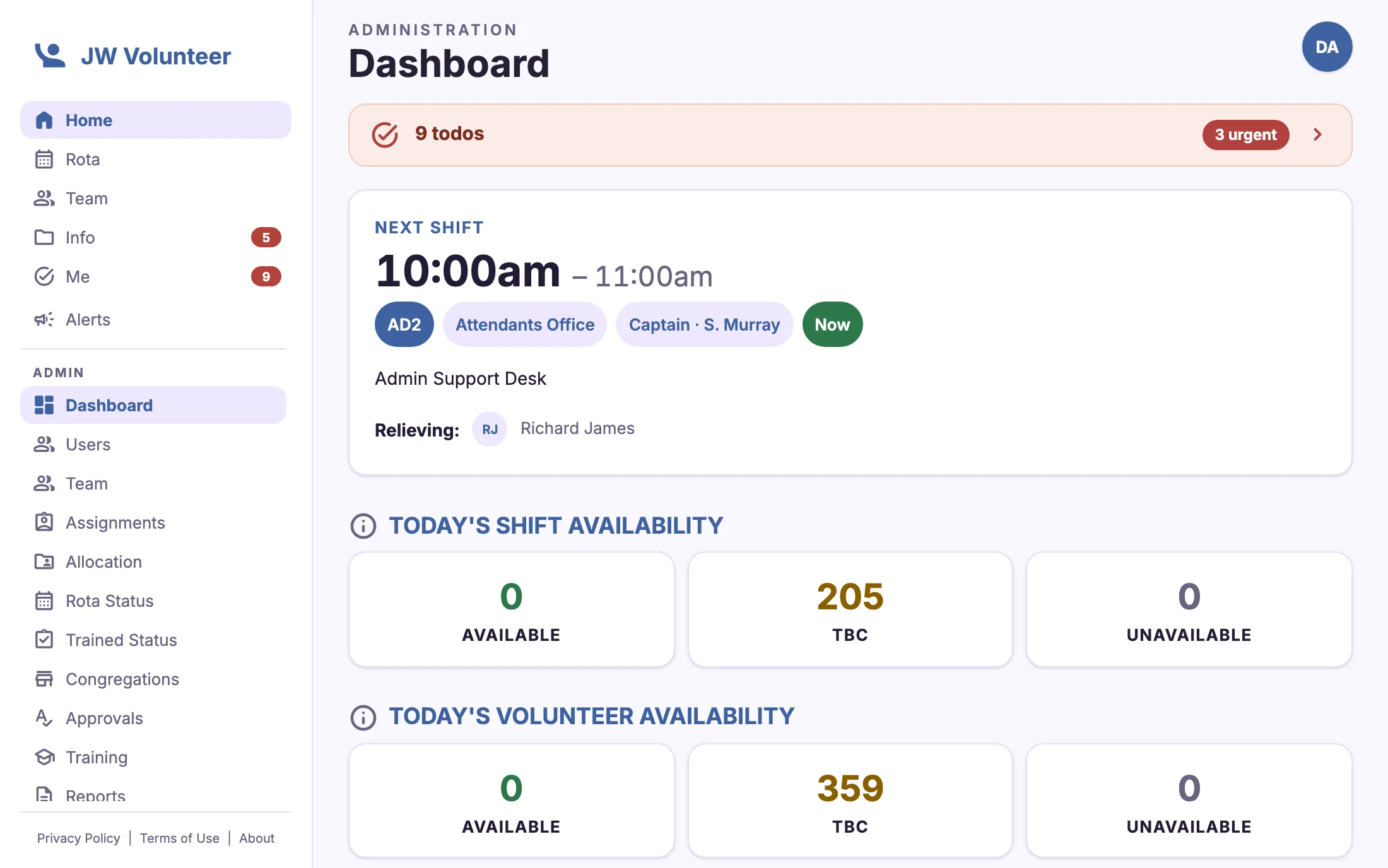
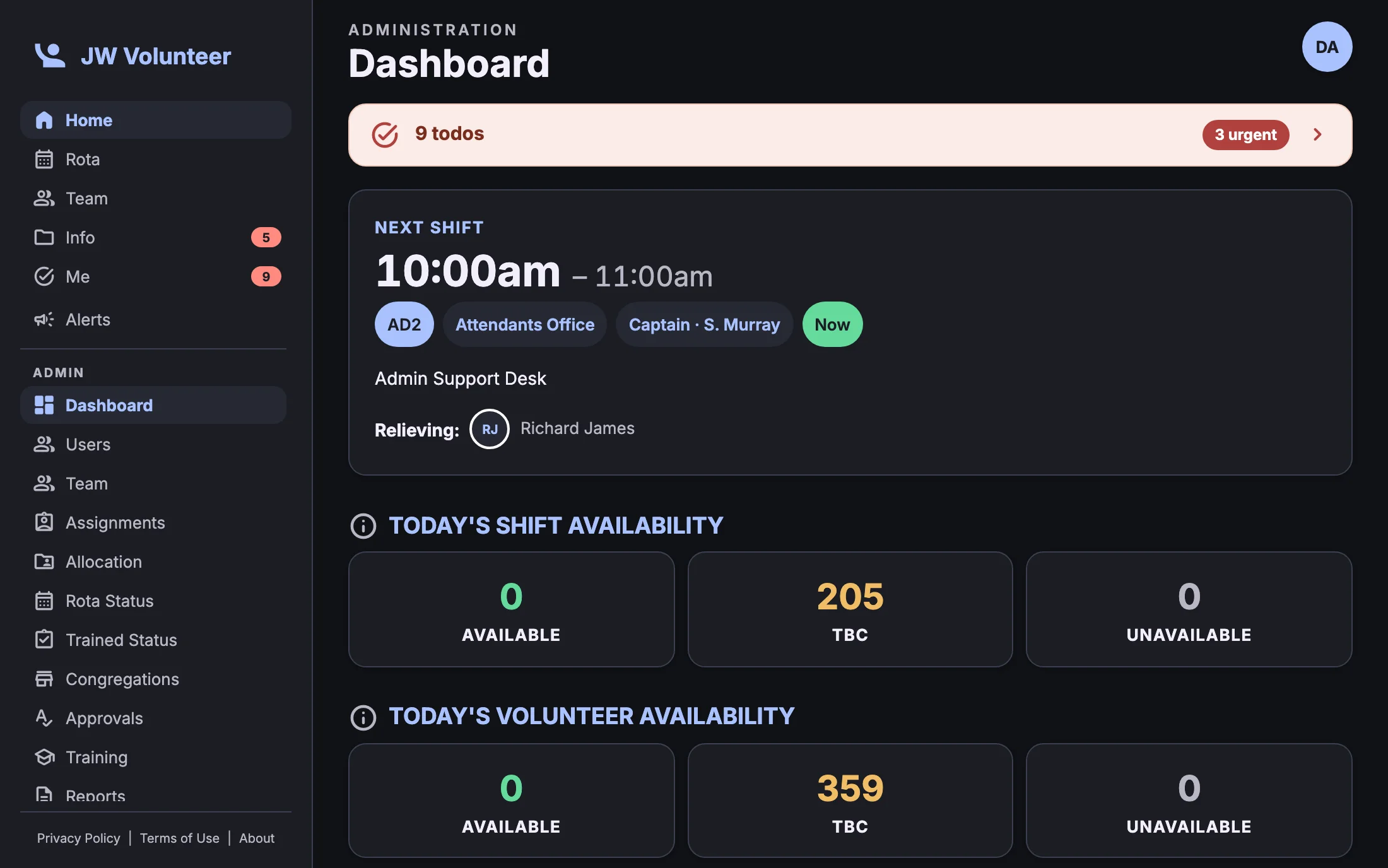
The administration dashboard opens with your todos and next shift, then today's shift and volunteer availability, rota status and people figures. Before the event, it shows training and approval status across every volunteer.
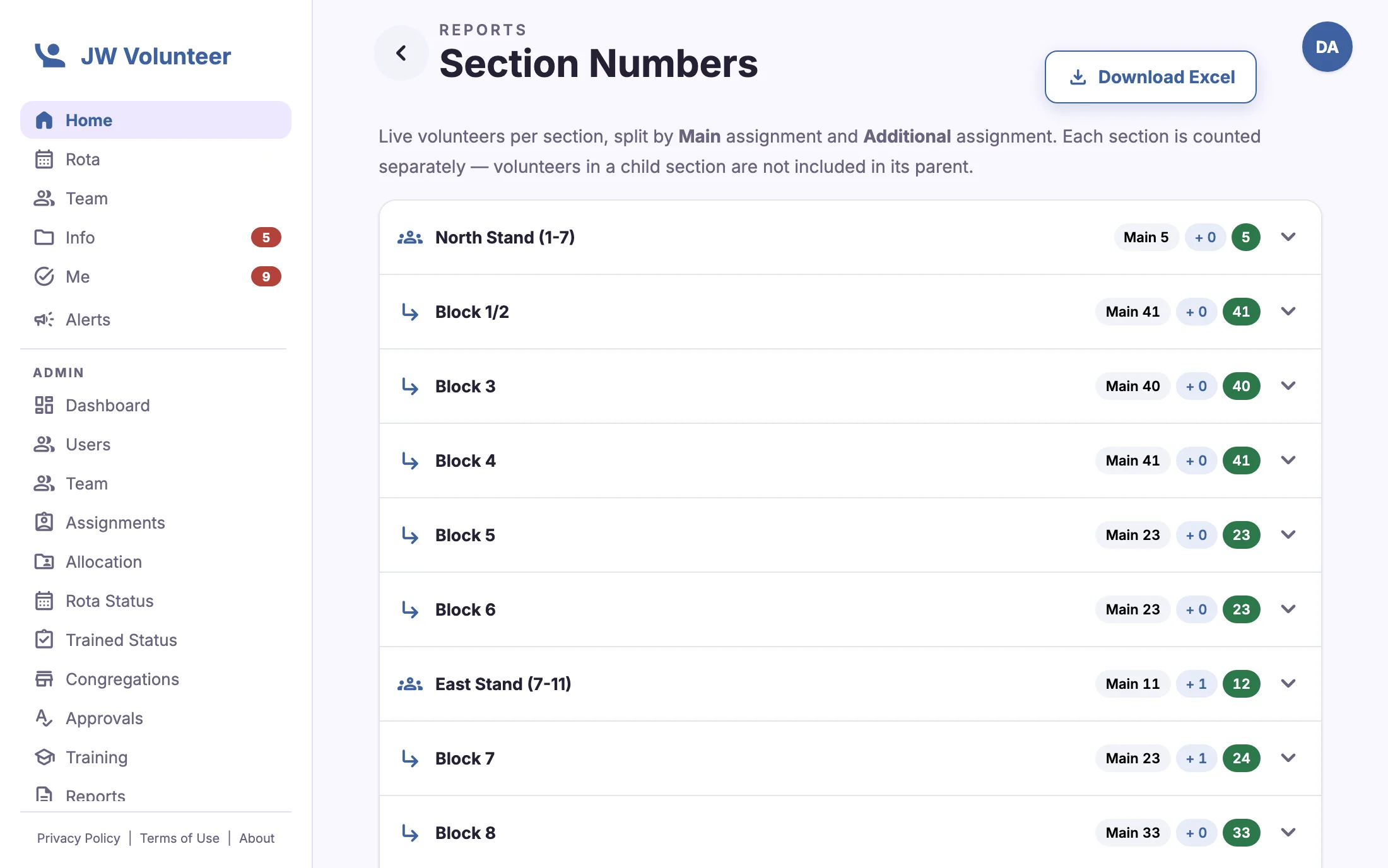
- Section Numbers: live headcount by main and additional assignment
- Reports on captains, unassigned users, training records and more
- Email bounce tracking and automated ACT certificate matching
- Spreadsheet export of volunteers, rotas and section numbers


Ask your AI assistant about your event
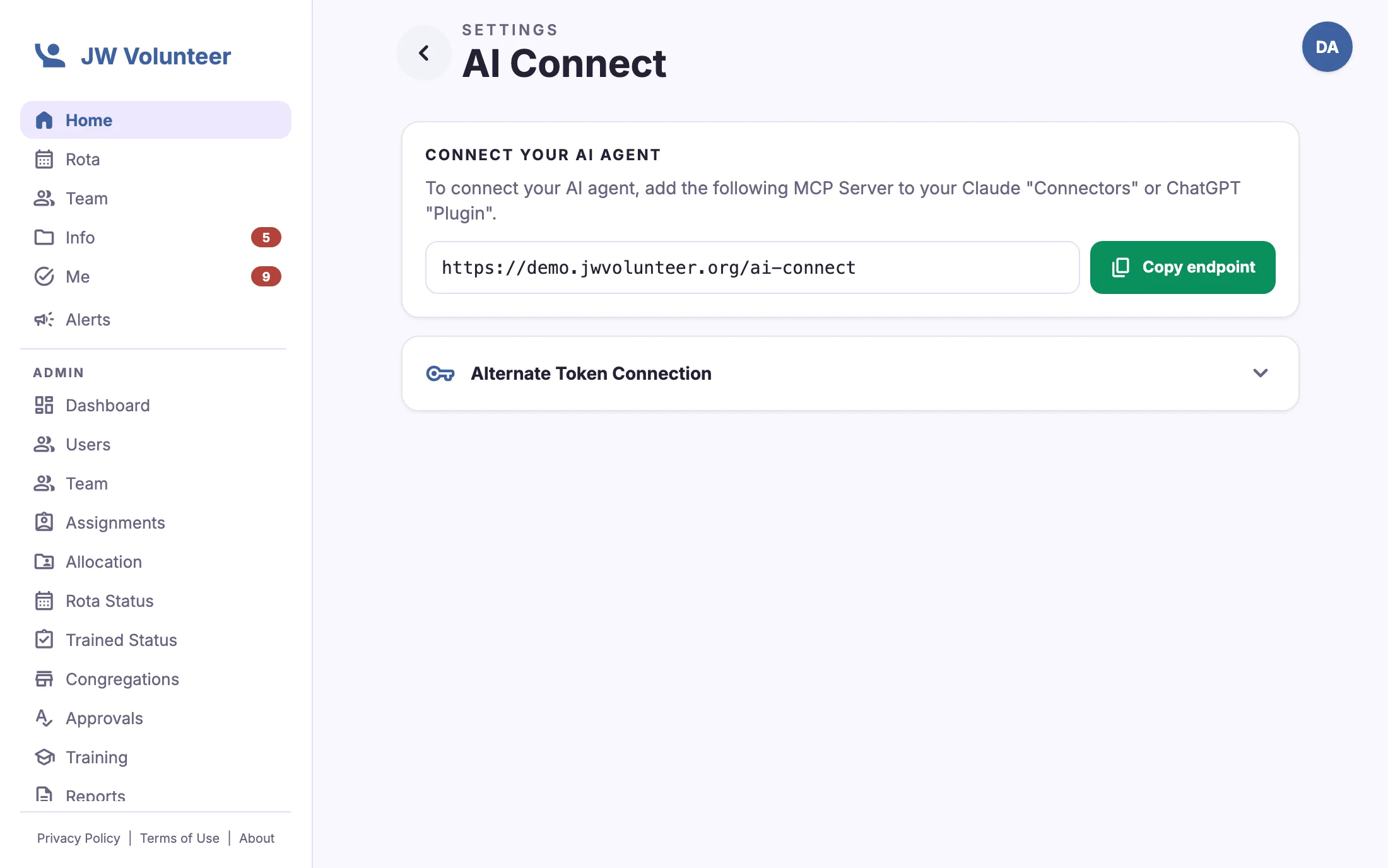
Where the event team turns it on, AI Connect lets you link an AI assistant, such as Claude or ChatGPT, to your own JW Volunteer account. You can then ask things like "who on my team still needs training?" or "what's my next shift?" and get answers drawn from live data.
- Sees only what your role already allows you to see
- Secure sign-in, with access you can revoke at any time
- A small set of self-service actions, such as feedback and notification preferences
- Turned on or off per event team
See how it fits together
Follow a volunteer and an overseer through the event cycle, step by step.